
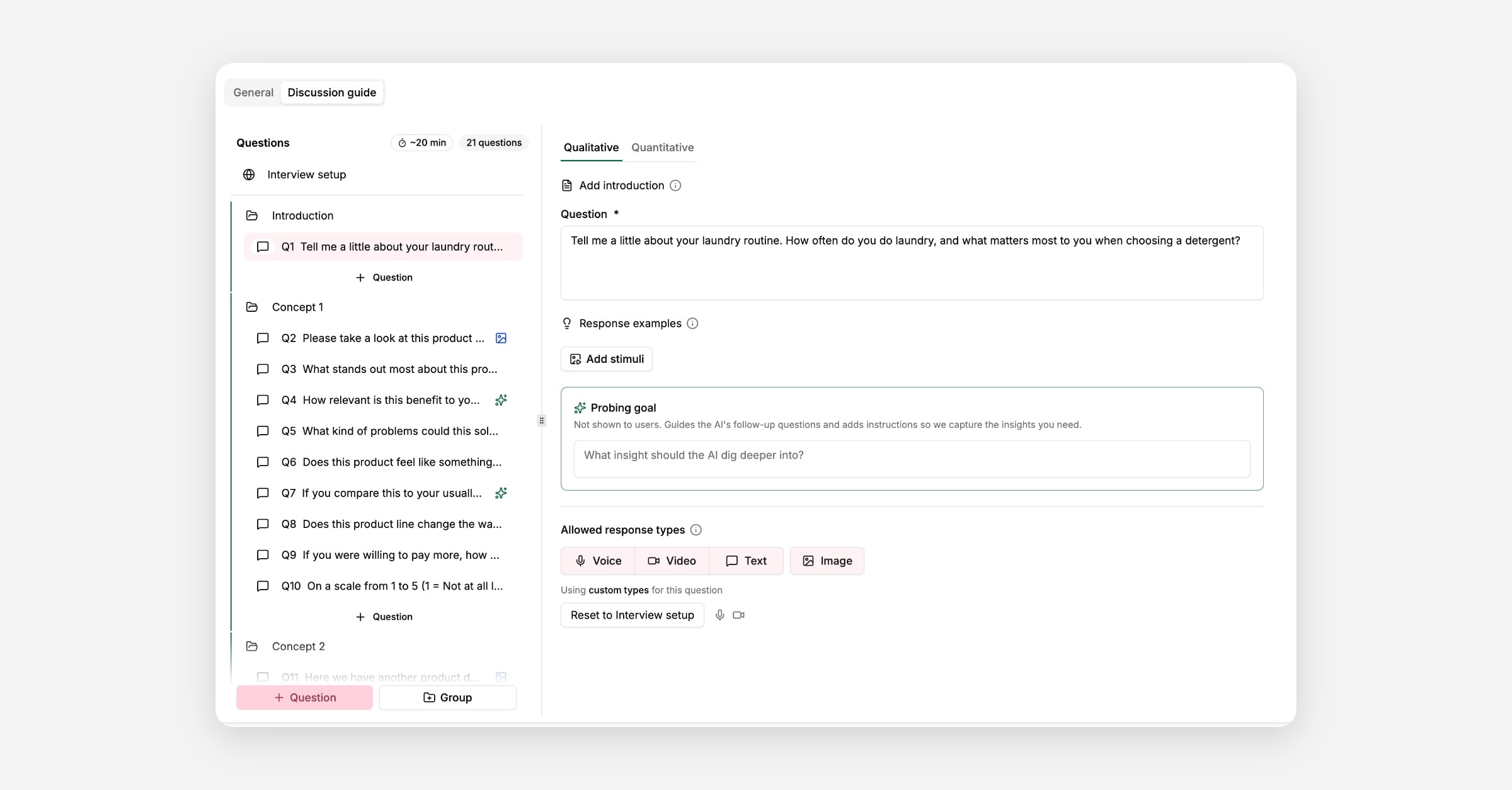
Your interview questions live on the Design → Discussion guide. This is where you write and organise the questions the AI interviewer asks participants.
Interview setup
Select Interview setup at the top of the sidebar to configure settings for the interview as a whole.
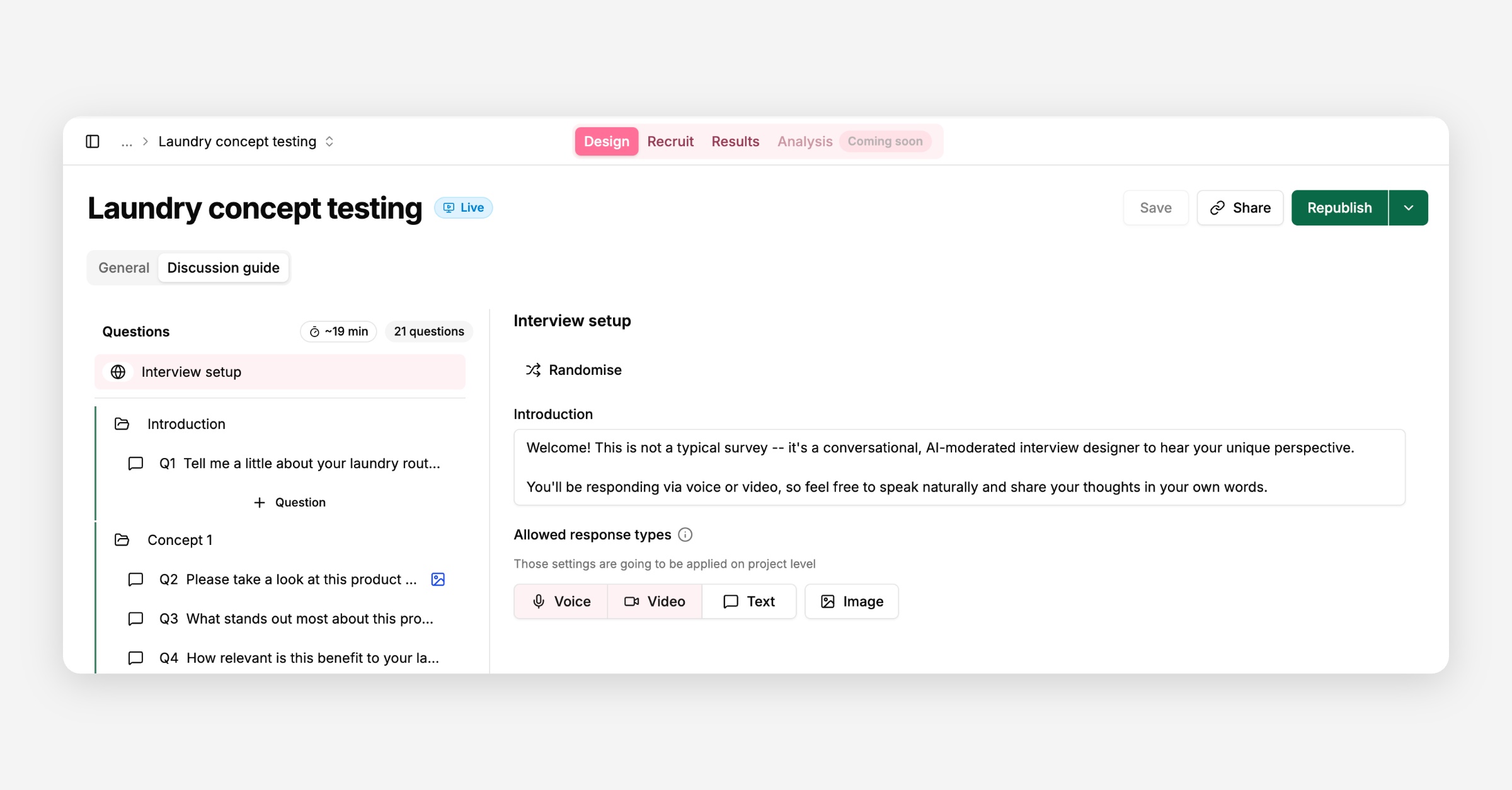
Introduction
The welcome message the AI says to the participant before the first question. Here you can introduce the name of the AI interviewer to participant, include interview duration and objective.
Randomisation
Click on Randomise to shuffle the questions and/or groups for each participant.
Allowed response types
The input modes available across the whole interview — voice, video, text, and image. This is the study-wide default; individual groups can override it.
Writing a question
Each question can be Qualitative (open-ended) or Quantitative (a structured response type).
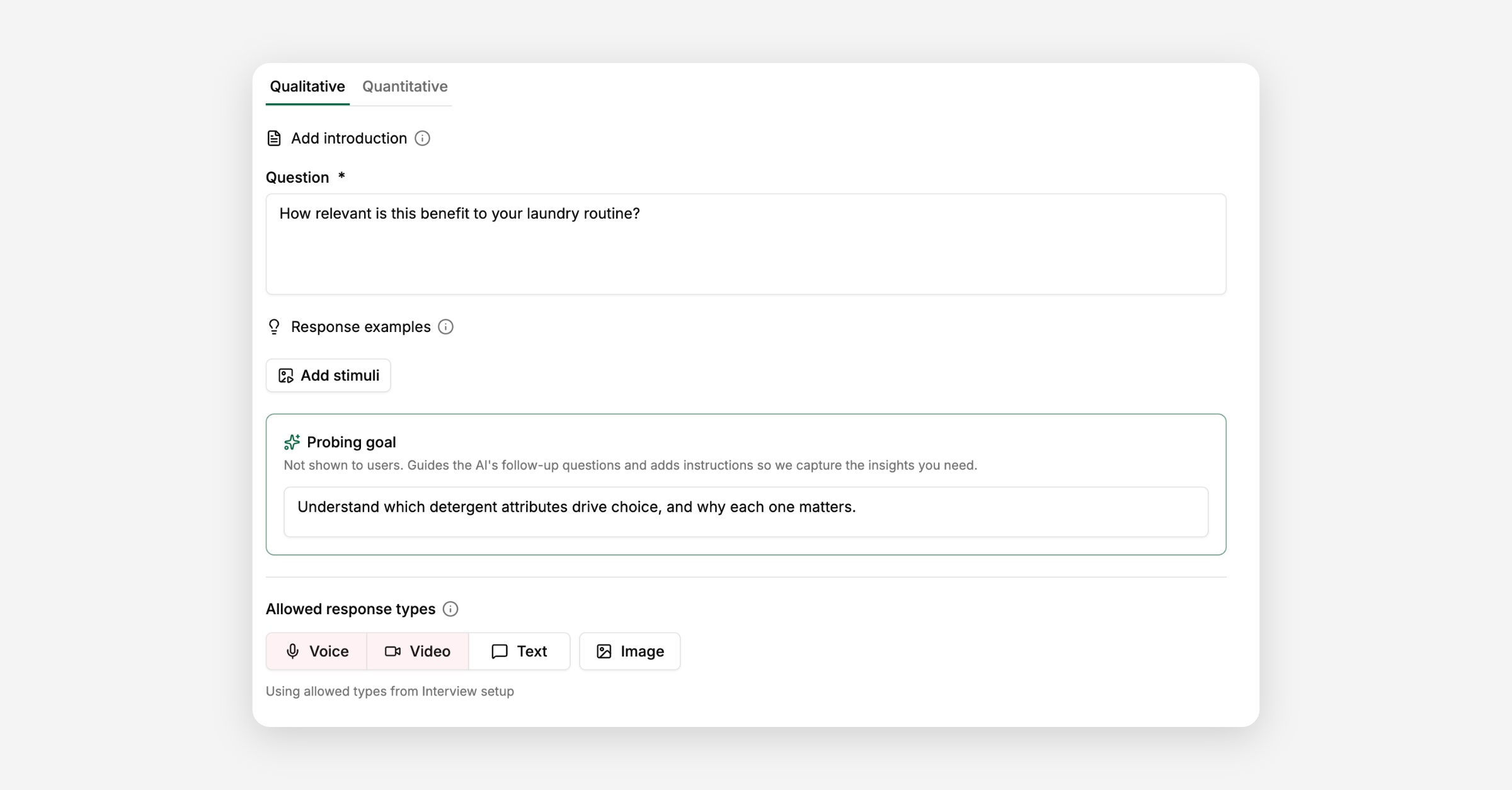
Qualitative questions have three extra fields that shape how the AI conducts that part of the interview:
Introduction
A short message shown to the participant before the question itself, to set context. It's kept separate from the question text so the AI doesn't confuse the two, or treat the introduction as part of what it's evaluating.
Response examples
Examples of what a great answer looks like, shown to the participant right after the question. These are for the participant's benefit only — the AI never uses them to decide whether an answer is complete, so they won't turn into a rigid checklist the AI asks through one by one.
Question
Question text supports basic formatting, bold, italic, links, and numbered or bulleted lists, which participants see rendered the same way in the interview chat.
Avoid including multiple questions in one question:
Multiple questions tend to decrease the focus of the participant and lead to the incomplete responses.
Do not include acknowledgements:
Avoid including the phrases like “Thank you for your response”. AI Interviewer will automatically include acknowledgements in the message.
Probing goal
Not shown to participants. This tells the AI what you're really looking for in this question, and it's the one field that actively steers the AI's follow-up questions — if the participant's answer doesn't cover what you've described here, the AI will probe further (up to 3 follow-ups) before moving on.
Example Probing Guides
Focus on specific features:
Question: "Describe your experience using our platform."
Probing guide: "Focus follow-ups on the dashboard and reporting features specifically. Ask about what works well and what's confusing."
Avoid sensitive topics:
Question: "Tell me about your team's collaboration challenges."
Probing guide: "Focus on tools and processes, not interpersonal conflicts or management issues."
Explore decision factors:
Question: "What made you choose our product over competitors?"
Probing guide: "Dig into specific features, pricing, and customer support as deciding factors. Probe which competitor they almost chose and why they didn't."
Understand emotional impact:
Question: "Describe a frustrating experience with our product."
Probing guide: "Explore how the frustration affected their work, what emotions they felt, and whether they considered switching to alternatives."
Quantitative response types
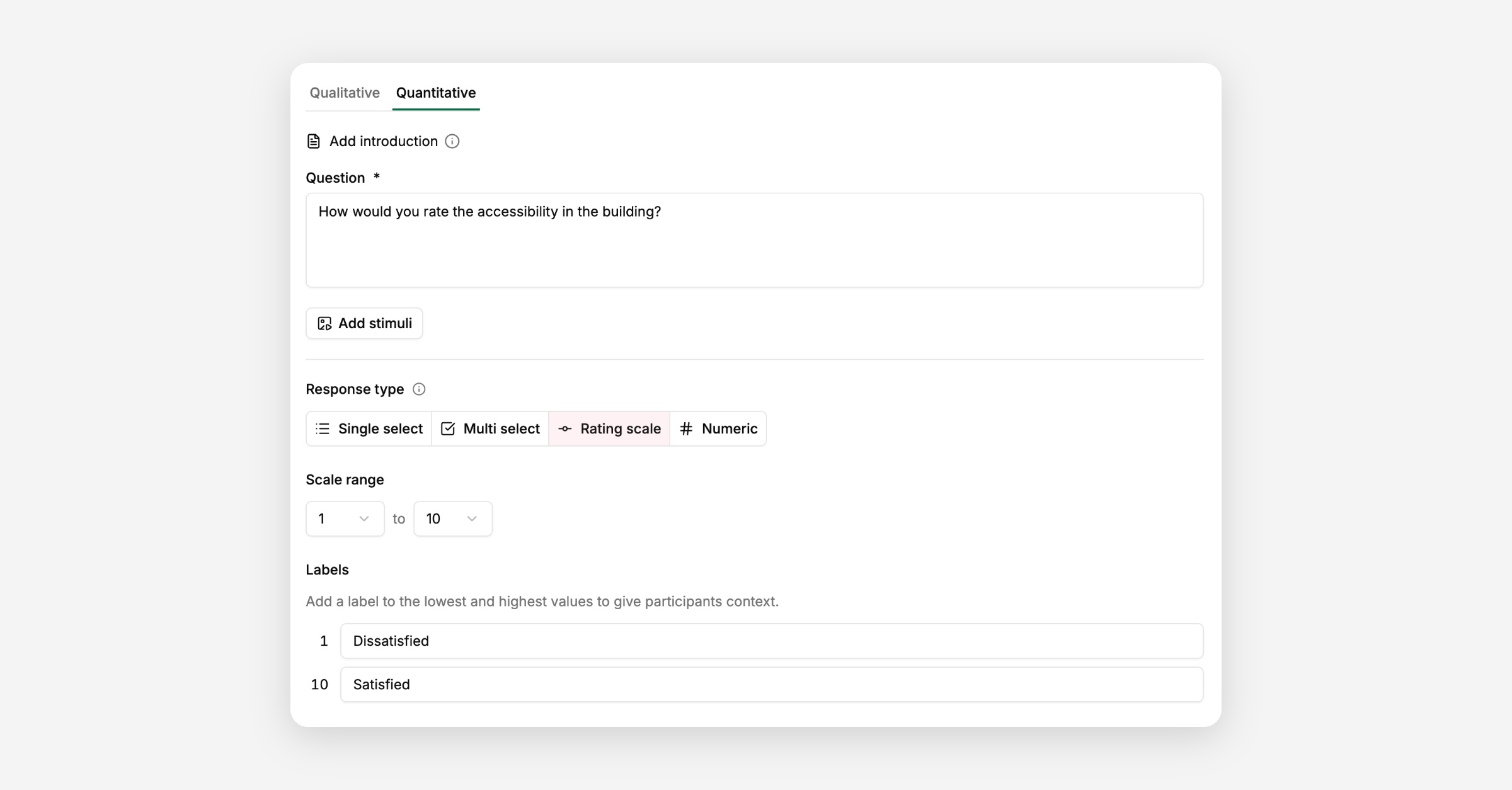
Quantitative questions collect a structured answer instead of a free-form one, using the same four response types available for screening questions — but here they're just recorded as data, with no qualify/disqualify rules attached.
Single select
Participants choose one option from a list you define, up to 20 options. Options can be reordered and optionally shown in randomised order.
Multi select
Participants can choose multiple options from a list you define, up to 20 options, with the same reordering and randomisation available.
Rating scale
A numeric scale (starting at 0 or 1, ending at 3, 5, 7, or 10), with optional labels for the low and high ends.
Numeric
Participants enter a number.
Adding stimuli
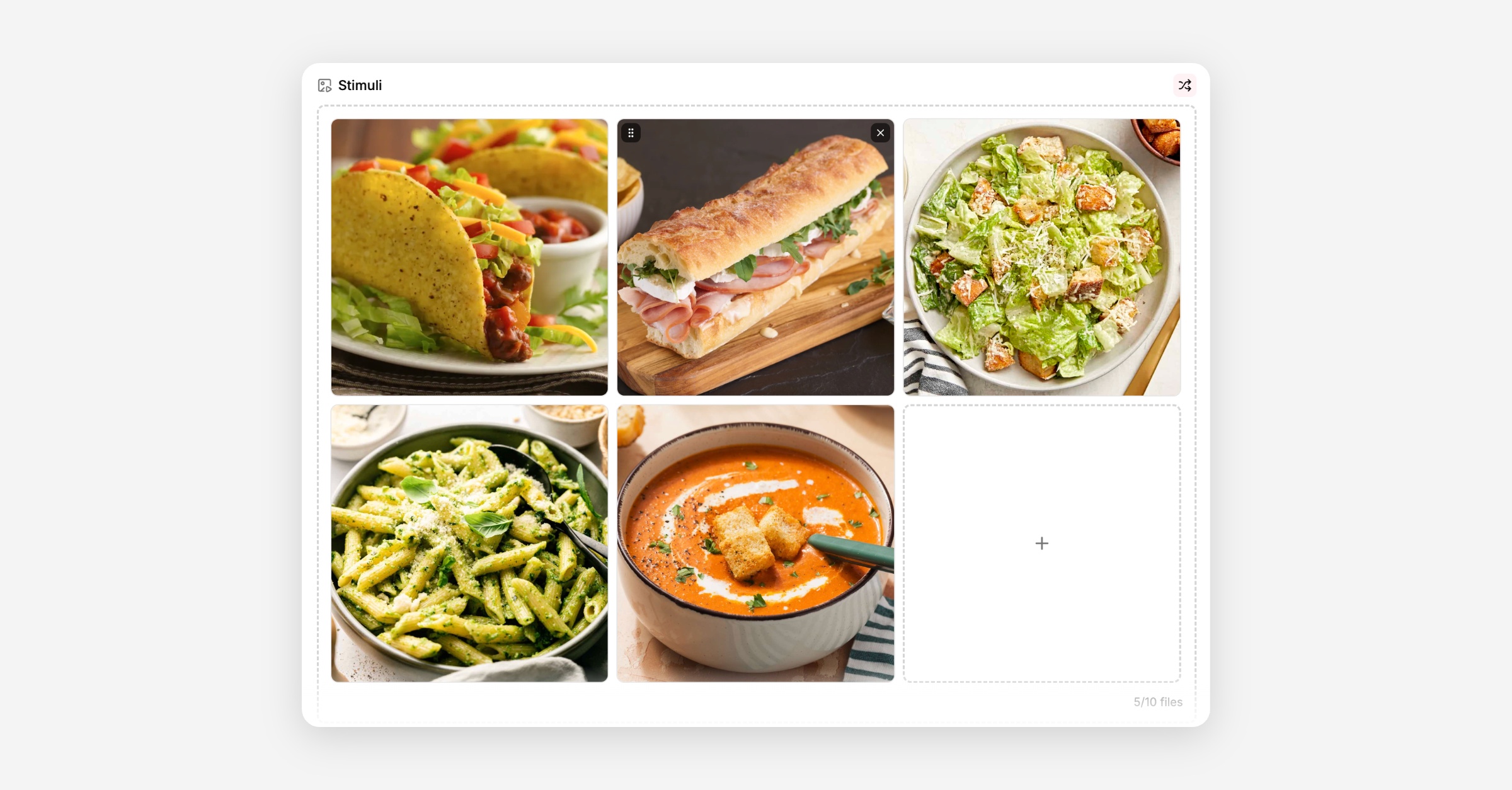
You can attach up to 10 images or videos to a question — drag and drop them in, or click to upload. Files can be reordered, previewed, and set to show in a fixed or randomised order. You'll need to save the study before you can add stimuli to a question.
Files supported:
Images: JPEG, PNG, WebP, GIF
Video: MP4
Audio: MP3, WAV
Documents: PDF
Limits
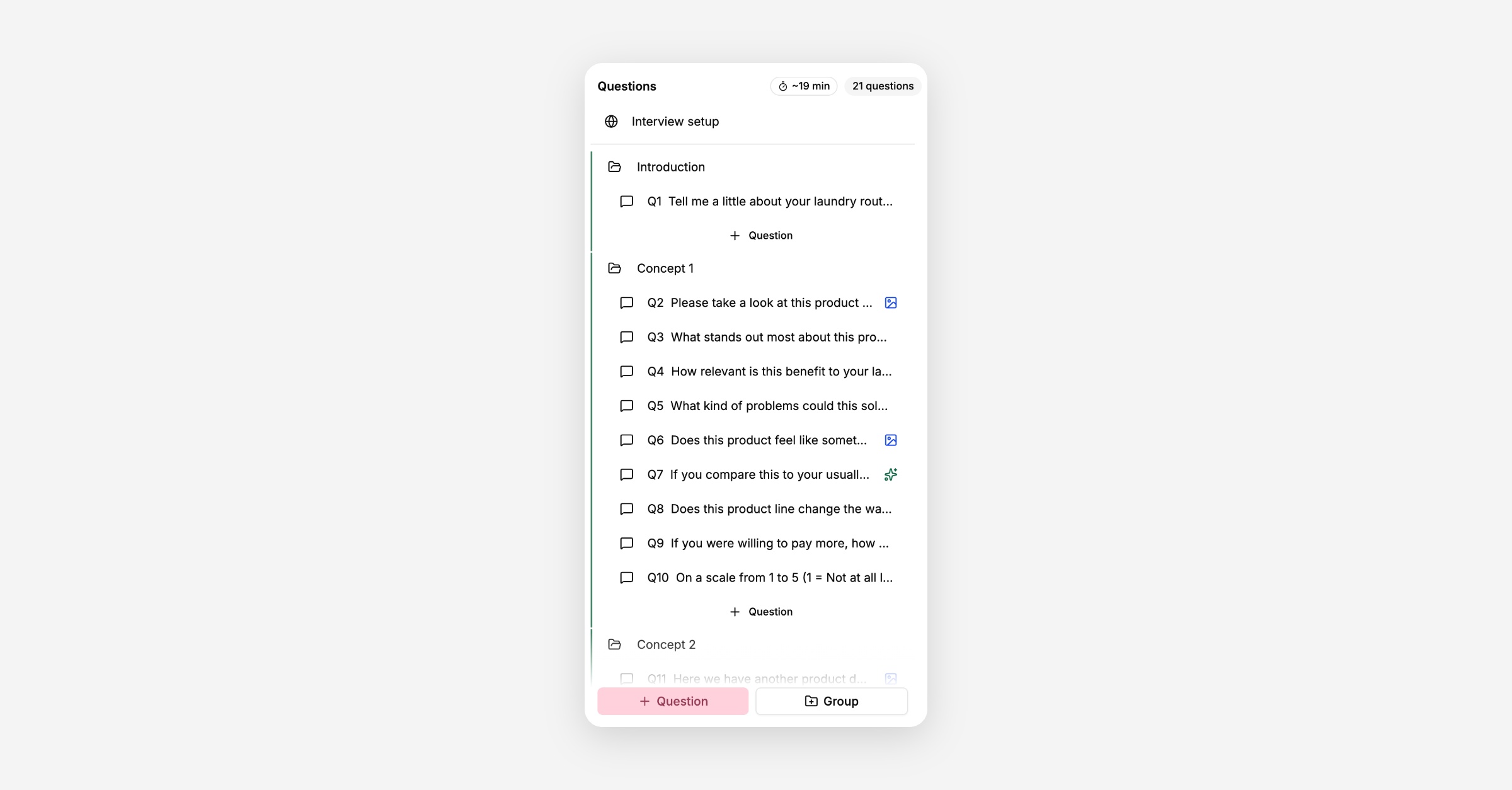
You can add up to 40 questions across your discussion guide. The sidebar shows a running question count and an estimated interview duration, which increases for any question that has a Probing goal set, since those are expected to take longer with follow-ups.
Organising your questions
Groups
Adding groups is optional and is mainly used to randomise a part of the interview and/or create thematic sections to improve the readability of the discussion guide.
You can organise your questions into up to 20 groups, and questions can also sit ungrouped at the top level. Groups can only live at the top level — you can't nest a group inside another group.
Each group has its own settings: a name (not shown to the participant), an optional introduction the AI says before the group starts, a Randomise setting, and its own allowed response types that can override the study-wide defaults.
Reordering
Drag and drop questions and groups to reorder them, or drag a question in or out of a group. You can drop a question directly onto a group to move it inside, or above/below a group to reorder at the top level.
Ungrouping and deleting
Ungrouping a group removes the group itself but keeps its questions, moving them up a level. Deleting a group removes it and everything inside it — you'll be asked to confirm both actions.
What’s the ideal length of interview?
Ideal LOI is 12 to 15 questions with one AI probe for each question. If the interview is too long, you might be risking a high participant drop-out rate due to fatigue.
Frequently asked questions
How many questions can I have in my discussion guide?
Up to 40, across however many groups you use. If you've seen a different number mentioned elsewhere, 40 is the current, correct limit.
Should the Probing goal contain the actual follow-up question, or instructions for the AI?
Instructions, not a literal question. Write what you want the AI to dig into if the participant's first answer doesn't cover it — the AI decides the actual wording of any follow-up itself, based on what the participant already said.
How do I add a question that isn't inside any group?
Use the + Question button at the very bottom of the sidebar — it always adds the question outside any group. A group's own inline "+ Add question" button, on the other hand, always adds the new question inside that group. You can also drag any existing question out of a group and drop it above or below a group to make it standalone.
Can I show each respondent only some of my stimuli, instead of all of them?
Not yet. Randomising a group only shuffles the order its items are shown in — every respondent still sees every item in that group. If you need different respondents to see different subsets of your stimuli, you'll need to set that up as separate studies for now.
Can I export my discussion guide?
Yes, you can do that by using the MCP connector.
Does Tellet support skip logic or branching between questions?
Not currently. Every participant in a group sees every question in it; there's no way to skip or show questions conditionally based on an earlier answer. If you need different question sets for different segments, that has to be set up as separate studies toda