Tellet (v2)
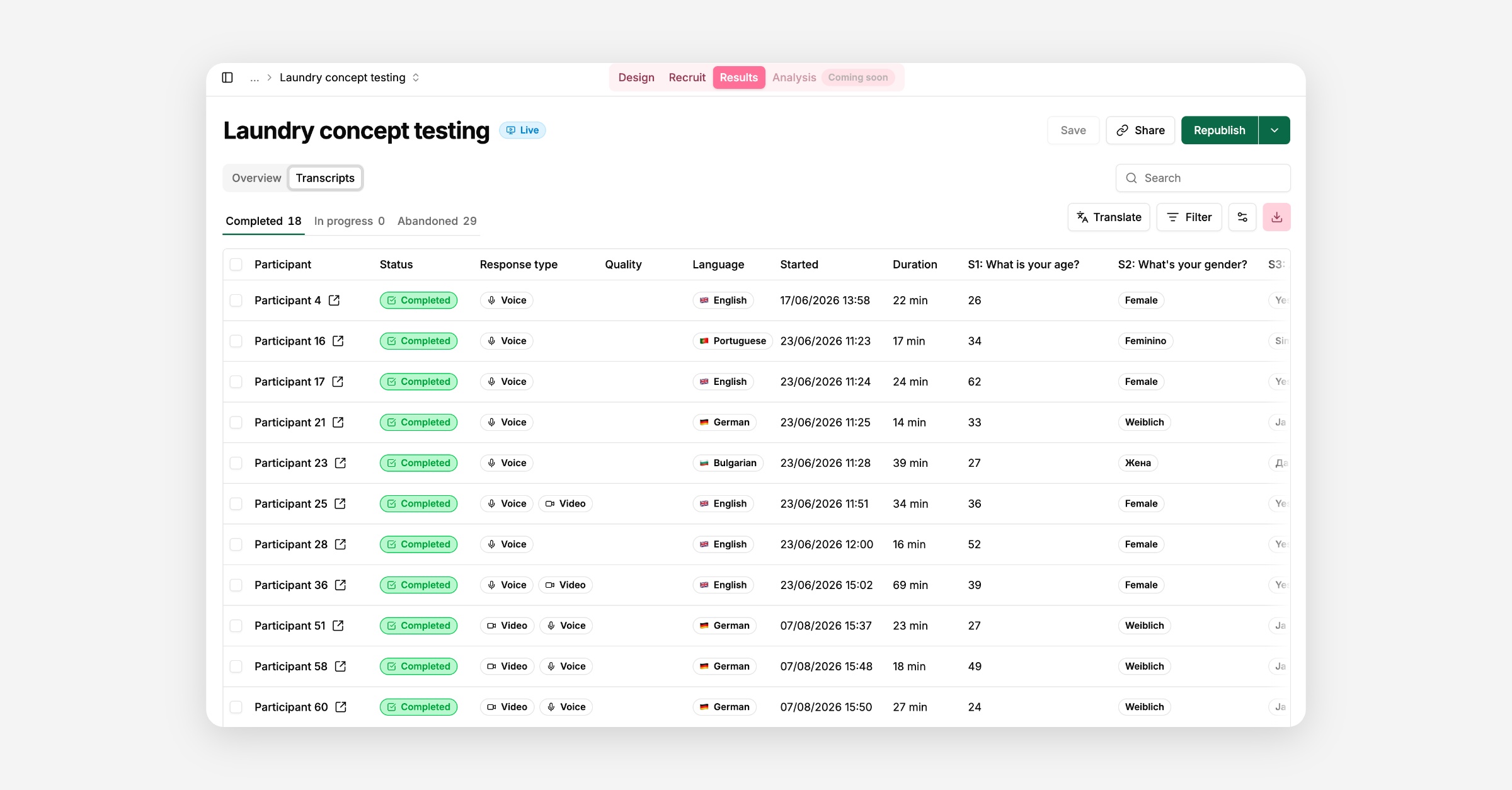
Every interview conversation lives on the Results → Transcripts tab. Each row is one participant's conversation with the AI interviewer.
Test interviews (the ones you run yourself via Test on the study) never appear here — only real participant conversations are shown.
Alongside a Transcript ID, Participant, and Status, the table shows the participant's response type (text/audio/video), an answer Quality indicator, the Language they interviewed in, when they started, Duration, Messages count, and Words count. If your study collects screener answers, custom variables, or has questions worth scanning at a glance, those show up as extra columns too — use the column visibility control to show or hide any of them.
Each transcript is one of: In progress, Completed, Analysed, or Abandoned. The status tabs above the table let you filter to Completed, In progress, or Abandoned. Participants who didn't pass your screening questions currently show up under In progress.
You can archive a completed transcript from its row in the table or from its overlay to hide it without deleting it, useful for a low-quality response, a fraudulent submission, or an internal test conversation. Archived transcripts drop out of the table, out of analysis outputs, and out of exports automatically, but stay accessible: filter to Archived to find one, then unarchive it to bring it back into your normal analysis set.
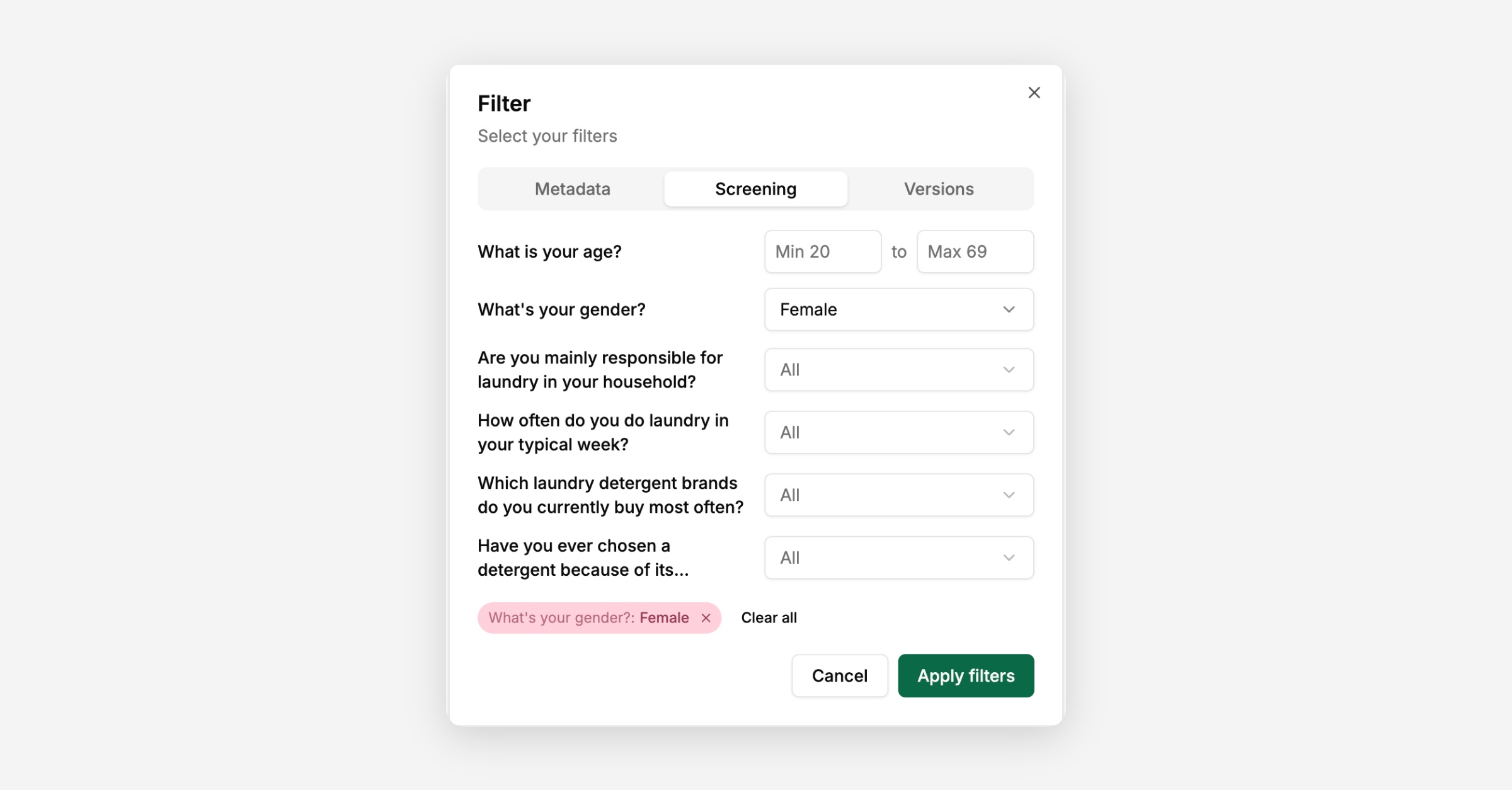
Build advanced filters based on question answers, variables, response type, and more, to narrow the table down to a specific set of conversations.
If you've published a study more than once, use the version selector to look at transcripts from one specific version, or across all of them. Selecting a version returns transcripts from all of its republishes. Selecting a version returns transcripts from all of its republishes. By default, all versions are shown (merged).
Click a row to open the full conversation in a panel on the right.
The conversation itself — every message from the AI and the participant, in order, with timestamps. Audio and video answers play inline with their written transcript alongside, so you can read along.
Interview details (duration, response type, quality, language, message and word counts, start time, any variables or URL parameters), plus a Screening answers card if the study had screening questions.
If your study's analysis language is different from a participant's interview language, a language switcher appears at the top of the Transcript tab, showing the participant's original language and each configured analysis language.
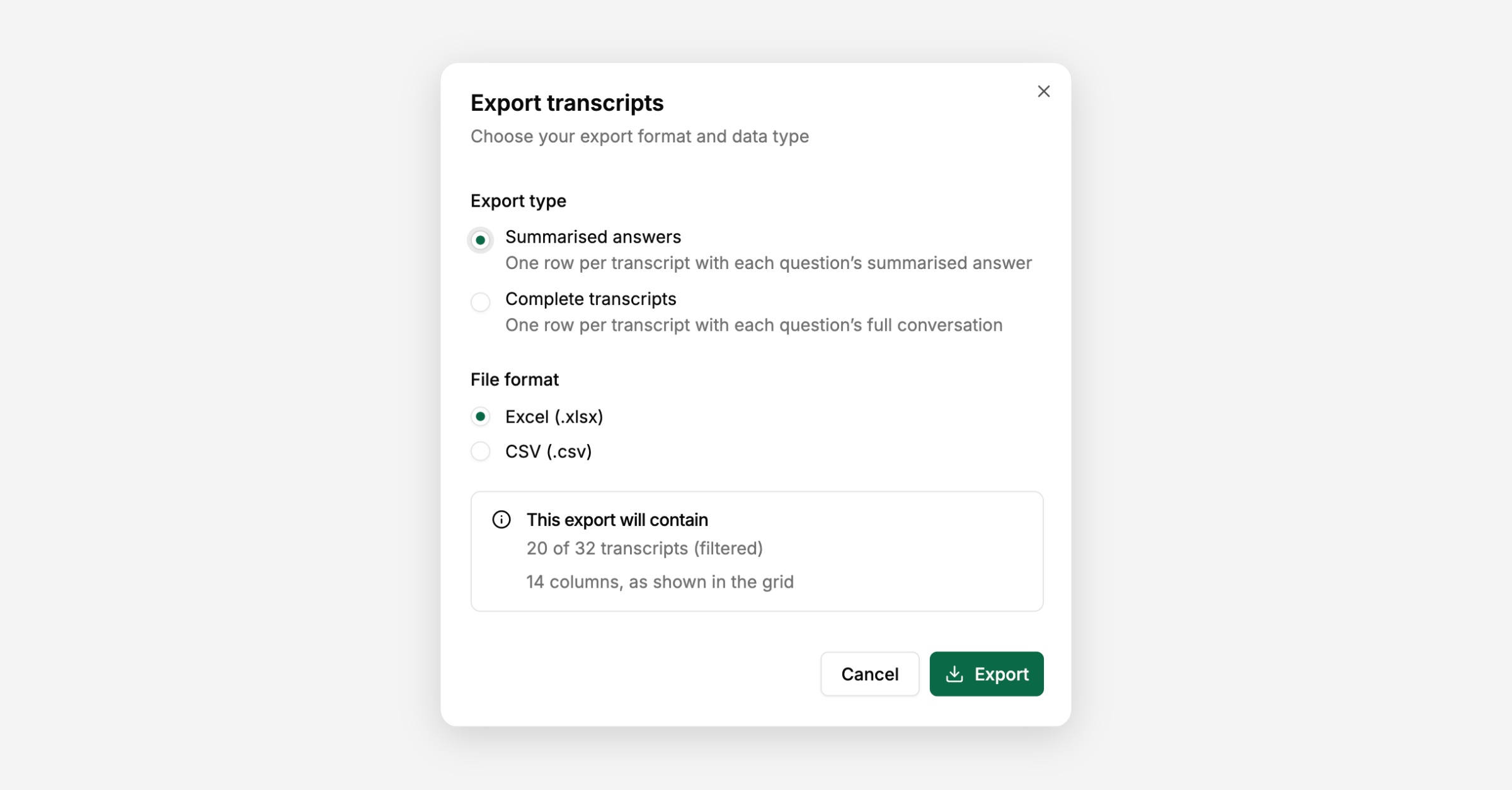
Use Export above the table to download either:
Summarised answers: Each participant's own answer to every question, one row per participant.
Complete transcripts: Full conversation with direct quotes from the participants. One row per participant.
Export will be in the language that you’ve selected in the transcript grid, so either original or translated.
From an open transcript, use its own export button for just that conversation (TXT or CSV). From the answers list for a single question, you can export just that question's answers as Markdown.