Tellet (v2)
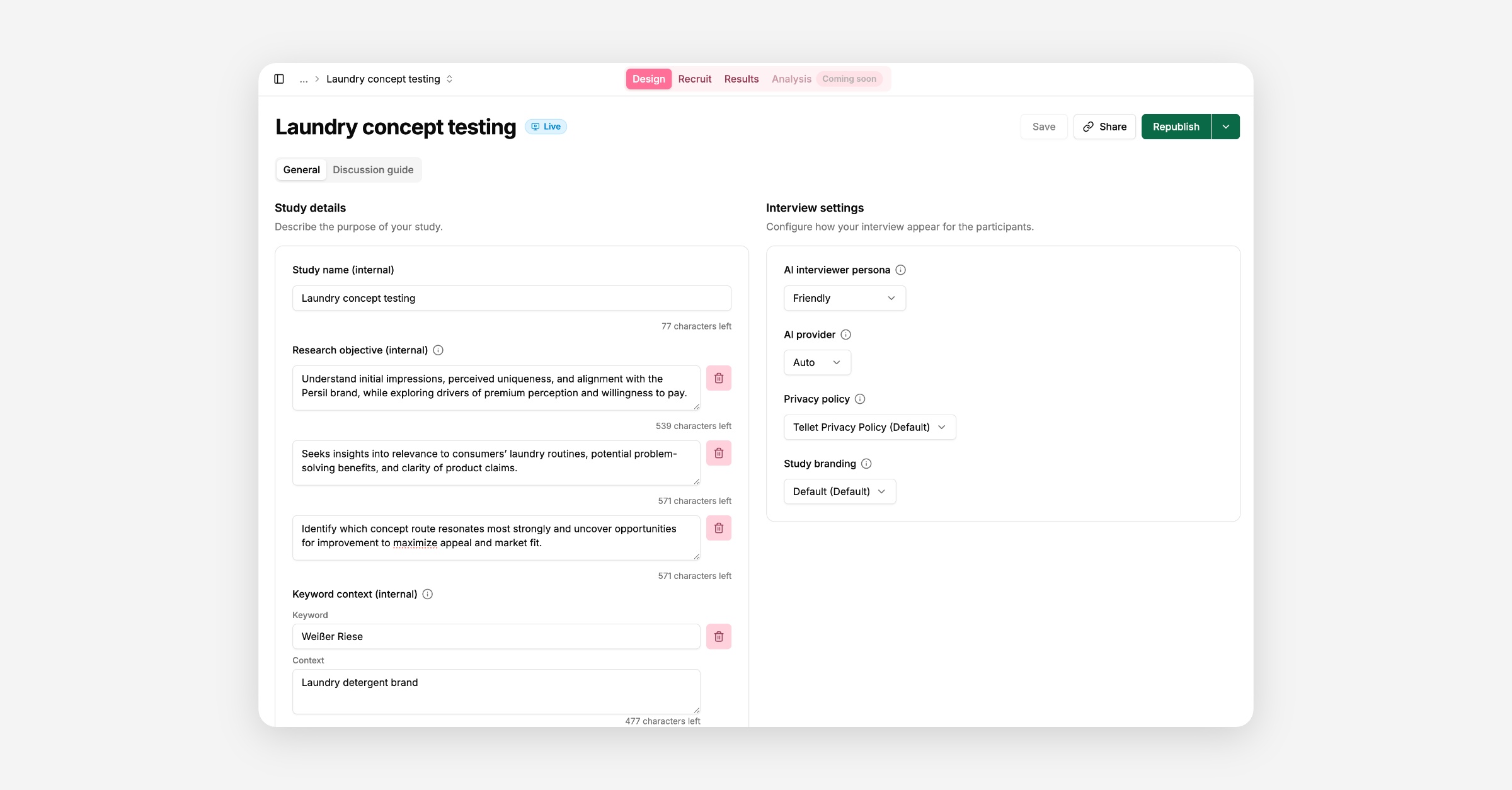
The settings for a study live on the Design → General tab. This is where you name your study, set its research objectives, choose languages, and configure how the AI interviewer behaves.
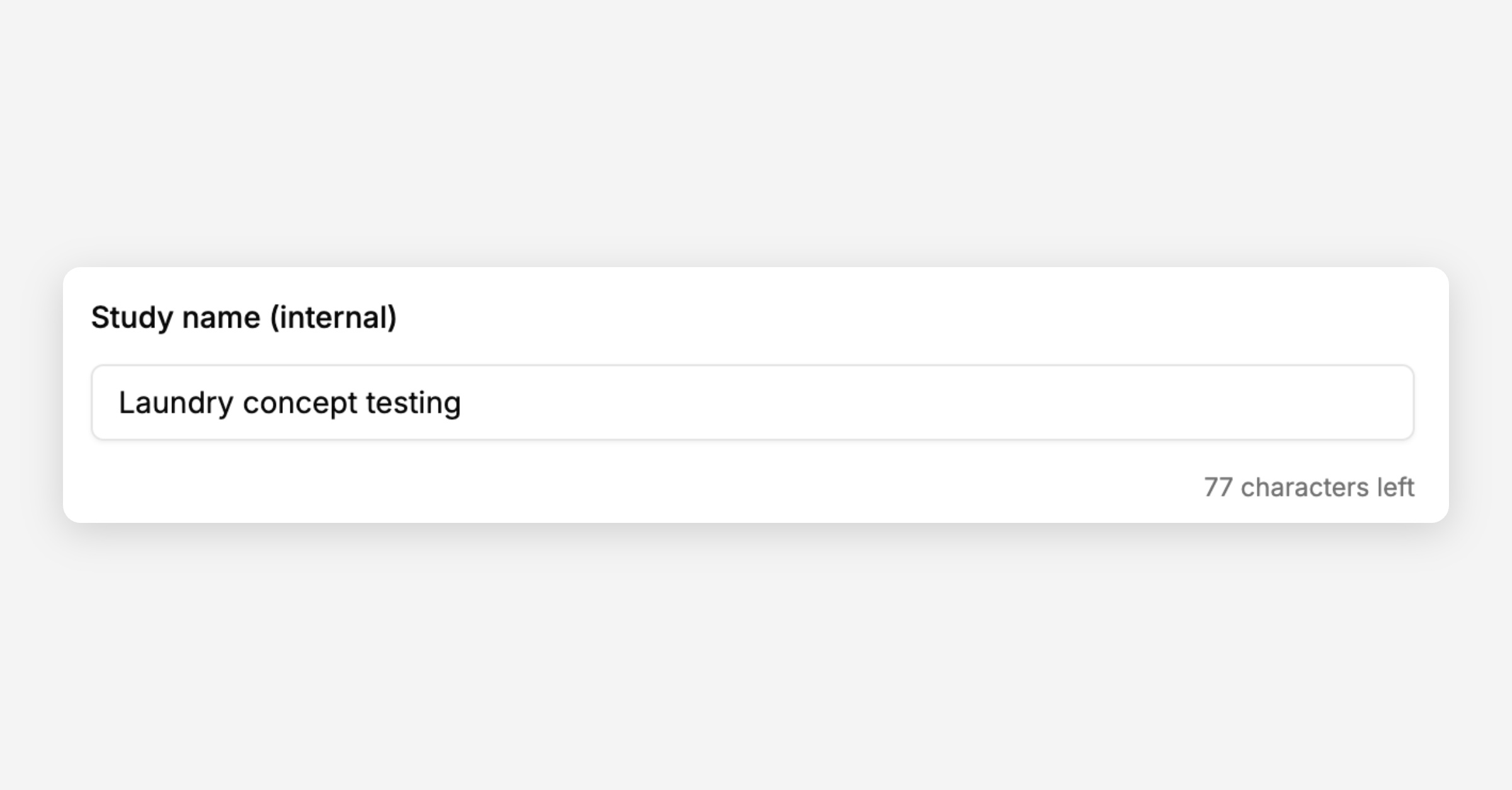
Required, up to 100 characters. This is for your own reference only; participants never see it.
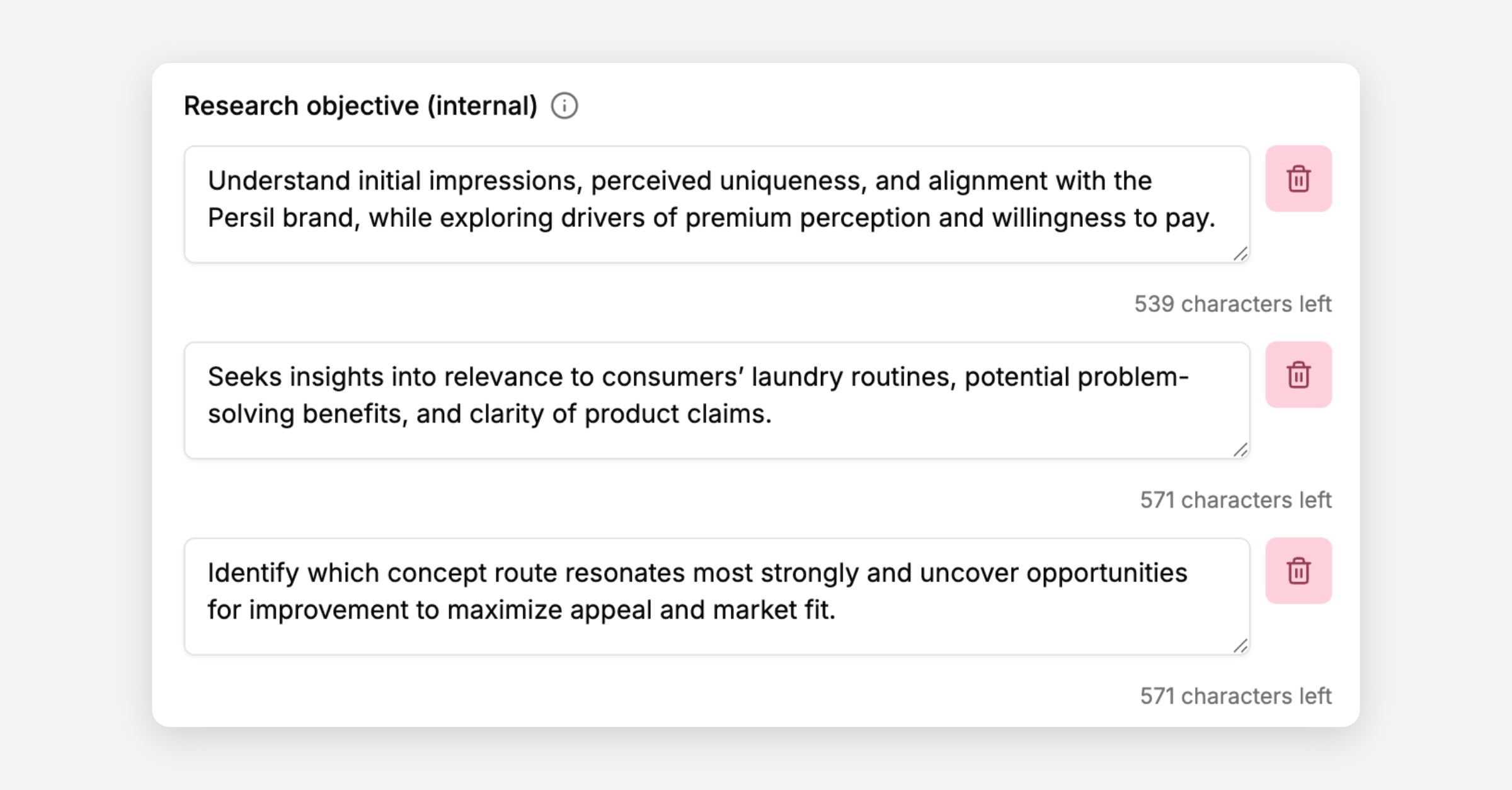
One field, up to 1,500 characters. This is used to generate the study's thematic analysis, so it's worth being specific about what you want to learn.
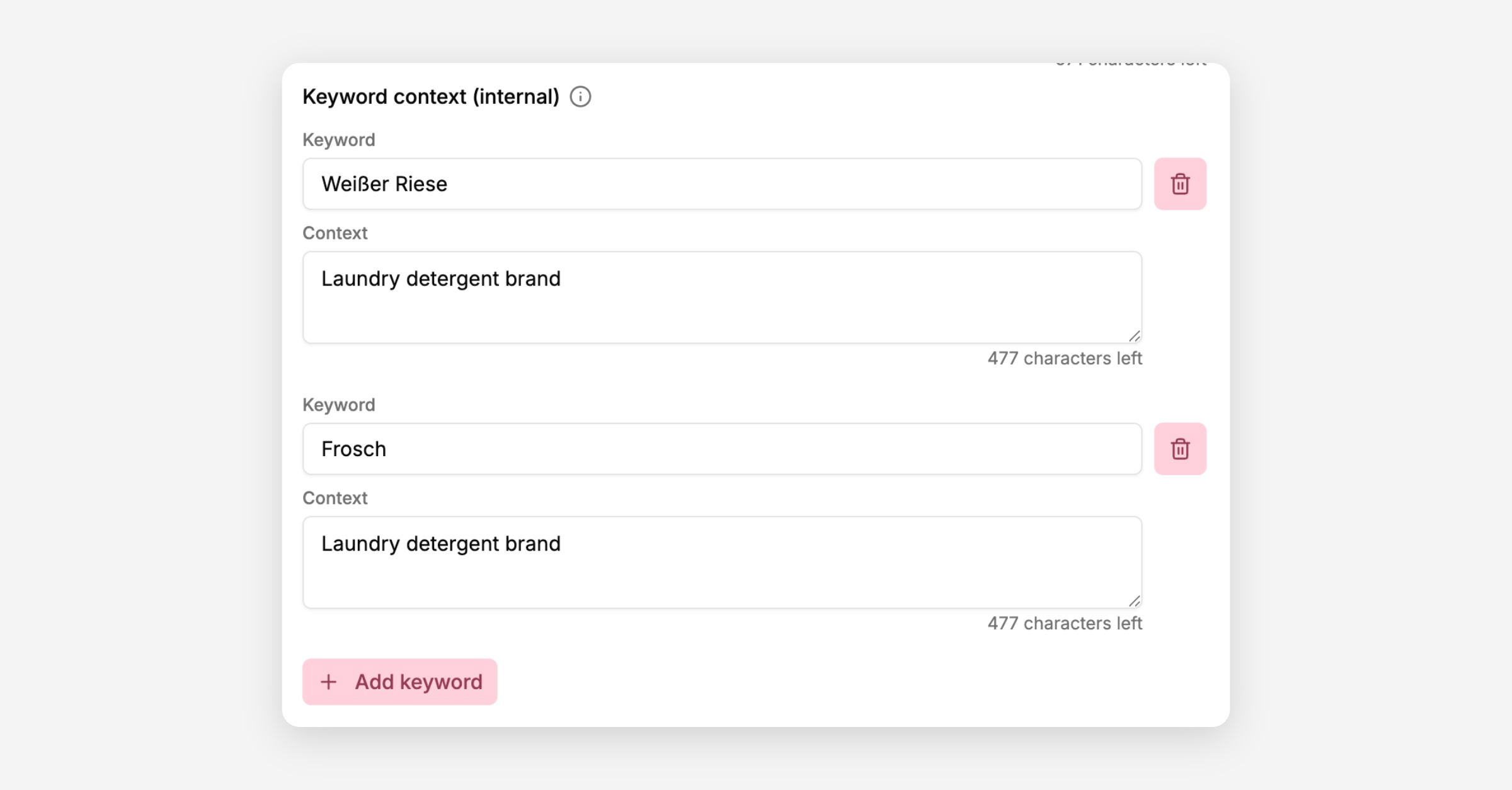
Up to 10 keyword/context pairs (keyword up to 100 characters, context up to 500 characters). Use this to guide the AI during the interview — for example, defining an acronym or product name specific to your study. Keywords you add here are never auto-translated.
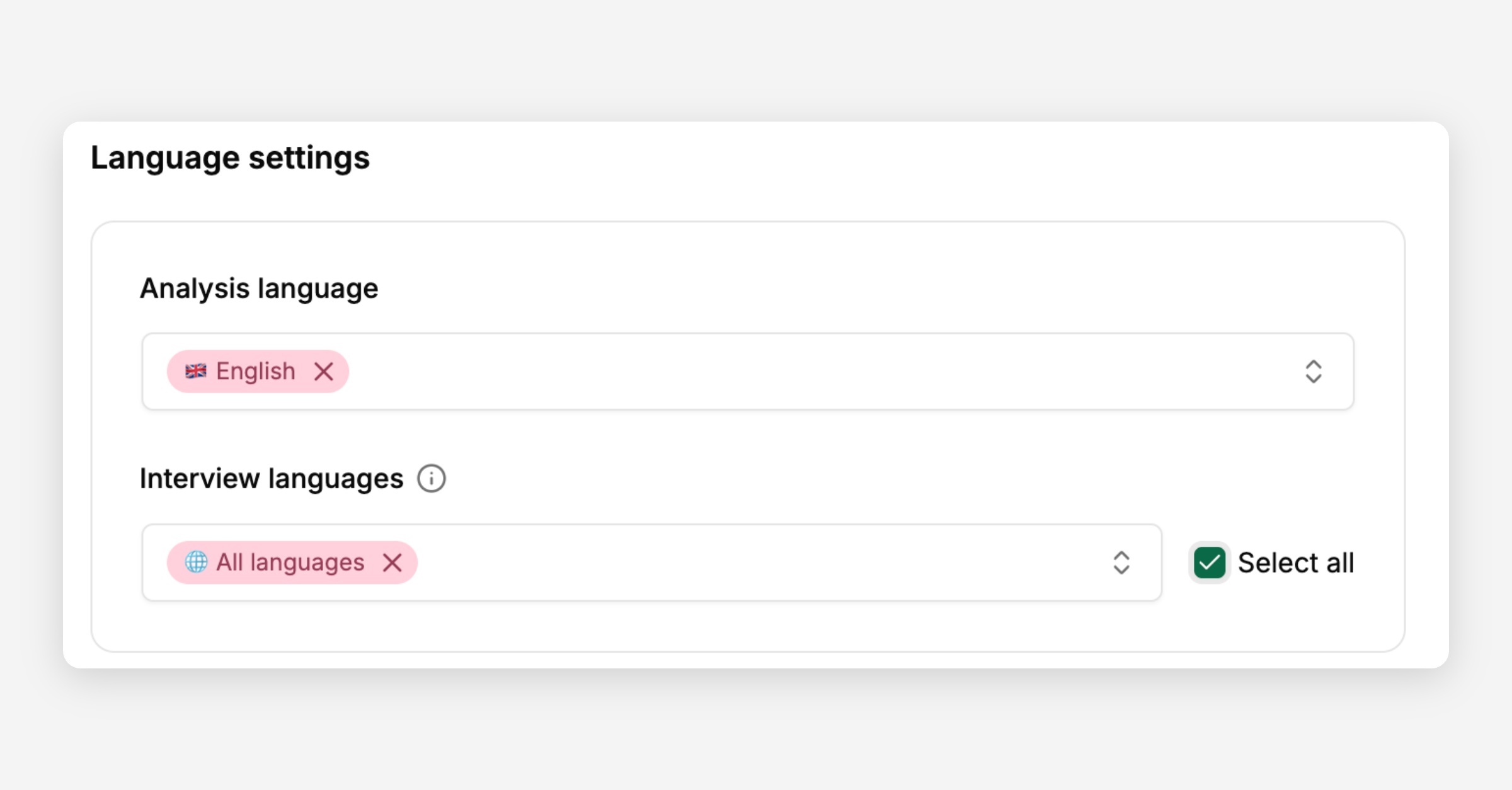
This is the language(s) your results and transcripts are shown in.
At least 1 language. These are the languages participants can choose from to take the interview in.
See the Languages & translations article for more on how these settings interact with what a participant actually sees.
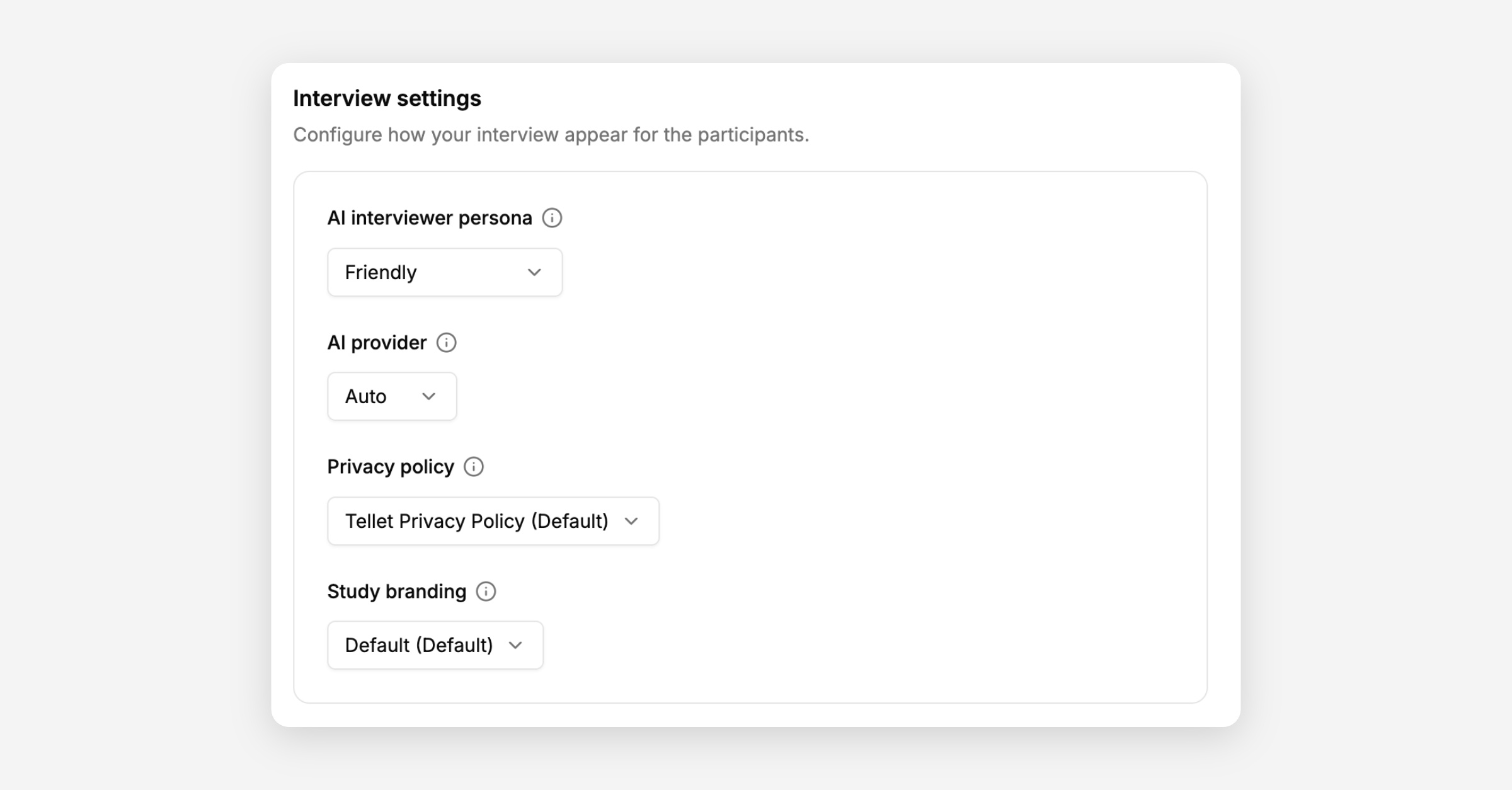
Formal or Friendly. Sets the tone and style the AI interviewer uses with participants.
Formal persona is going to use a more neutral tone of voice and use formal pronouns when addressing the participant. Informal, on the other hand, has a more warm, encouraging tone of voice and will use informal pronouns where possible.
OpenAI, Google, or Auto. This is the AI model family that conducts the interview. OpenAI is the default; choose Google when you need the AI to see participant video, not just hear audio. Auto uses OpenAI with Google as a backup.
Choose from the privacy policy links configured for your organisation. If the one you need isn't listed, use the Manage privacy policies link to add it in your organisation settings (requires admin permissions).
Choose from the branding profiles configured for your organisation. Study branding is preselected based on your org's default. Use Manage study branding to add or edit branding in your organisation settings (requires admin permissions).
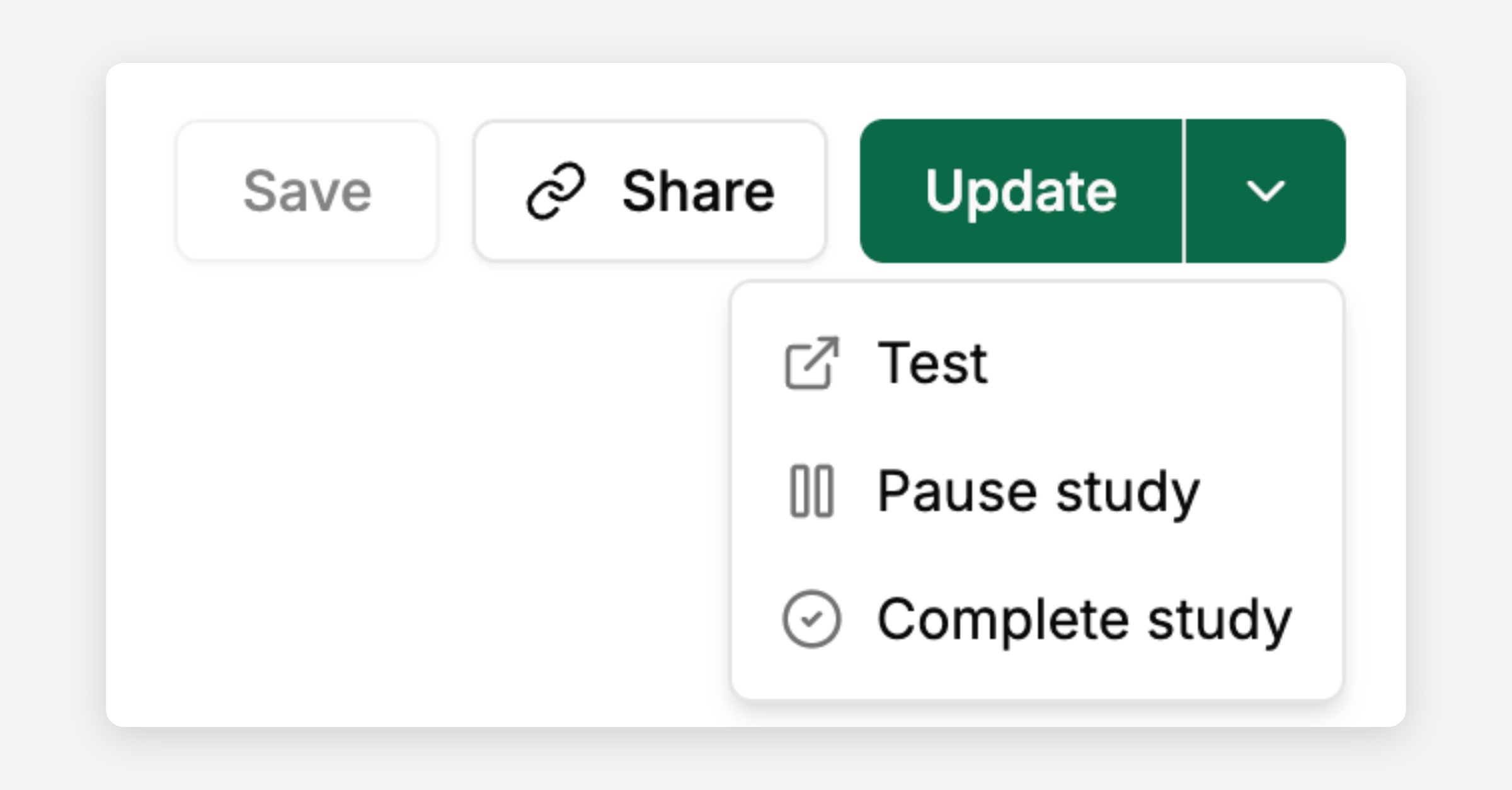
A few study-level actions live in the action bar at the top of the study, rather than in a settings form.
Opens the live interview in a new tab in test mode, so you can try it yourself before sharing it.
Makes the study unavailable to participants. If you're recruiting through a panel, remember to pause recruitment with your panel provider too.
Makes the study unavailable to participants once you're done collecting responses.
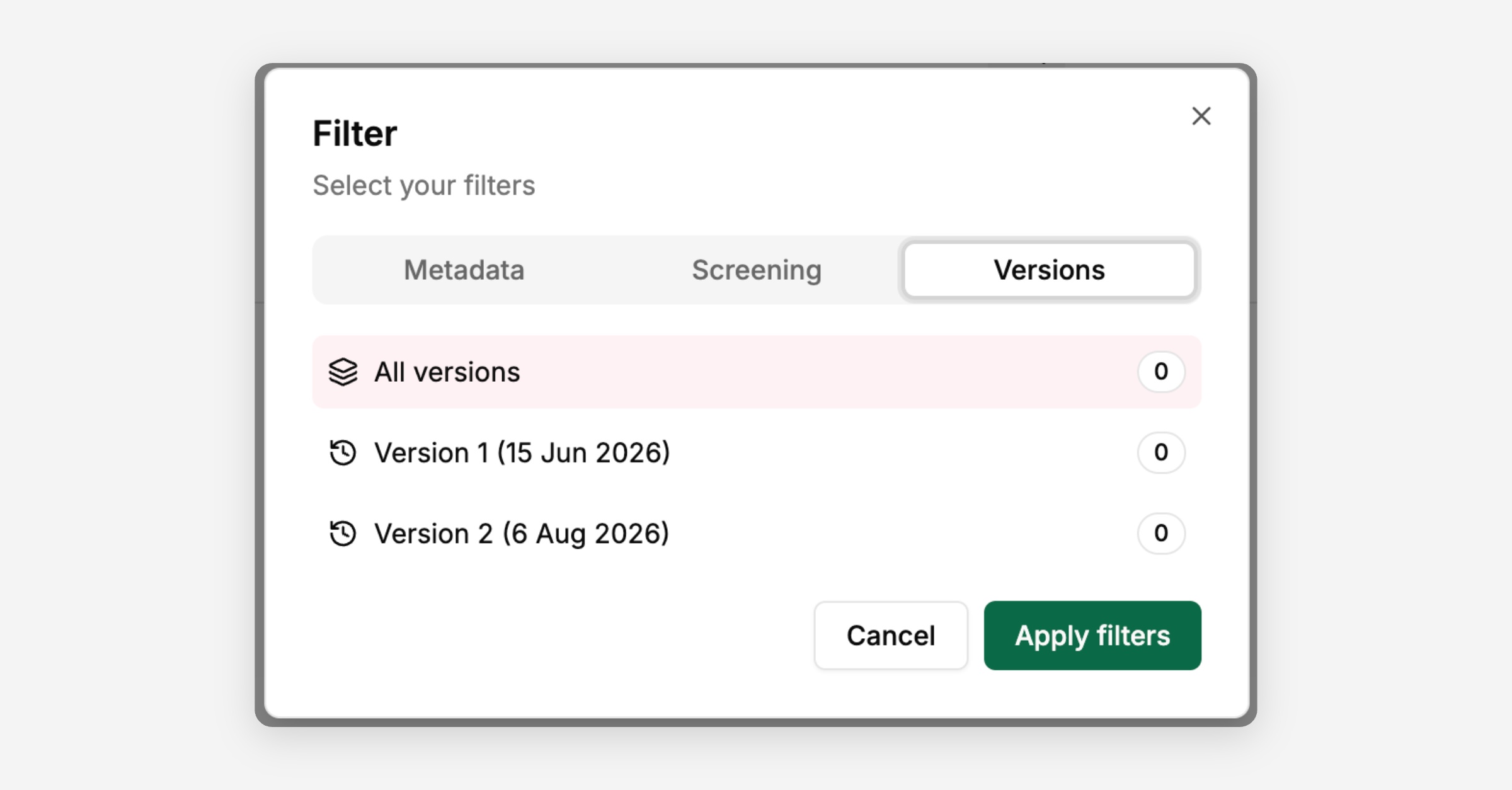
Publishes your study, or pushes changes to an already-published study. Republishing generates a new study and results version, so you can navigate between versions on the Results page.
Share the public interview link with others in your organisation. This is not the link to the study but the link to the participant interview. Responses will be recorded.
Yes, you can update the study at any time, even if it’s already published. If the changes are affecting the structure of the discussion guide (such as new question has been added, significantly changed or removed), we will create a new version of the study to preserve the integrity of the results. Otherwise, we will just update the study.
You will be be able to navigate between different versions in your Transcripts in Filters.