
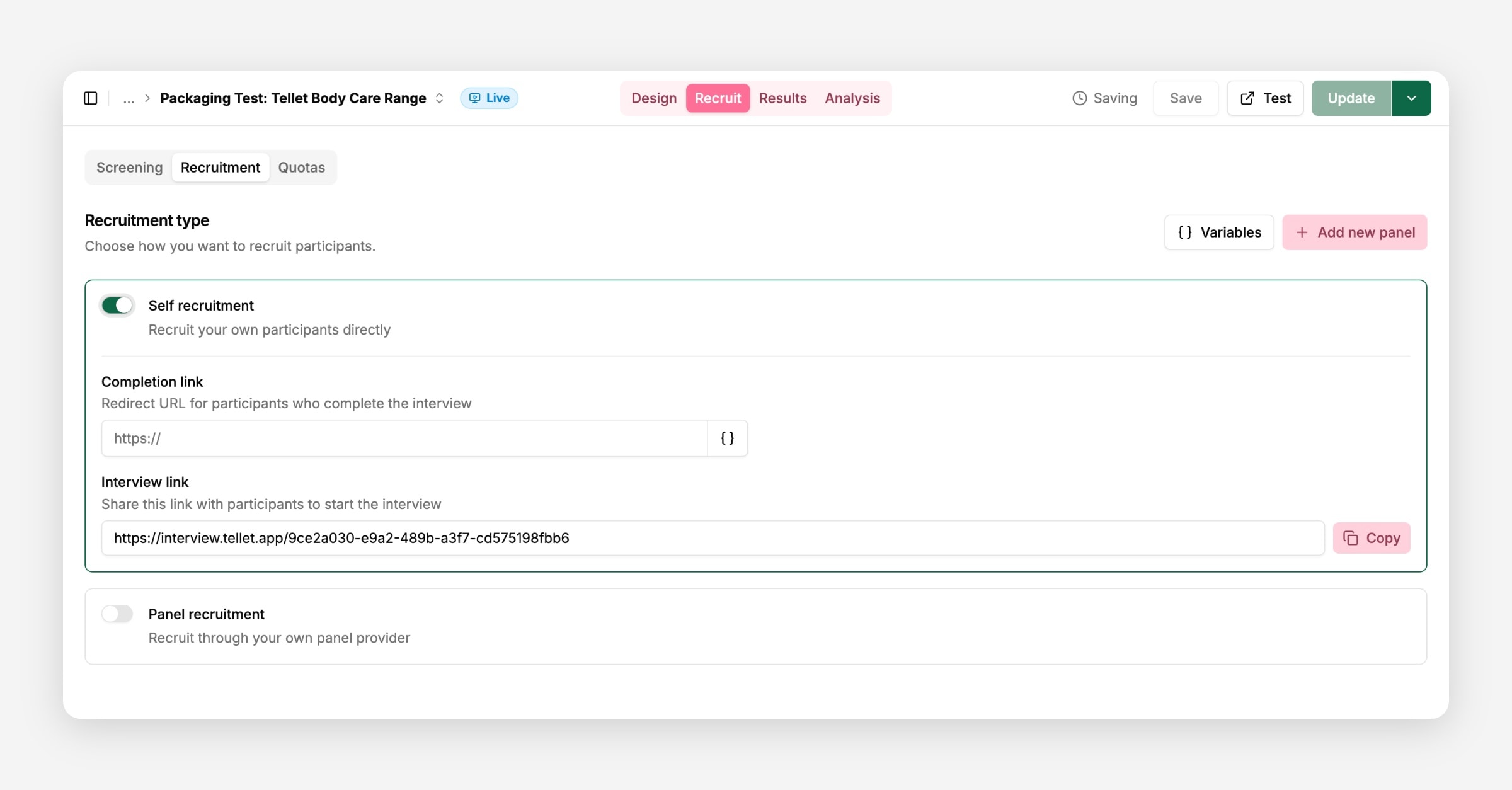
The Recruitment page is where you choose how participants reach your study and where they're sent when they finish. You can recruit your own participants, use one or more panel providers, or both at once.
Open it from Study > Recruit > Recruitment.
Self recruitment
Turn on Self recruitment to recruit participants yourself, for example through email, social media or your own customer list.
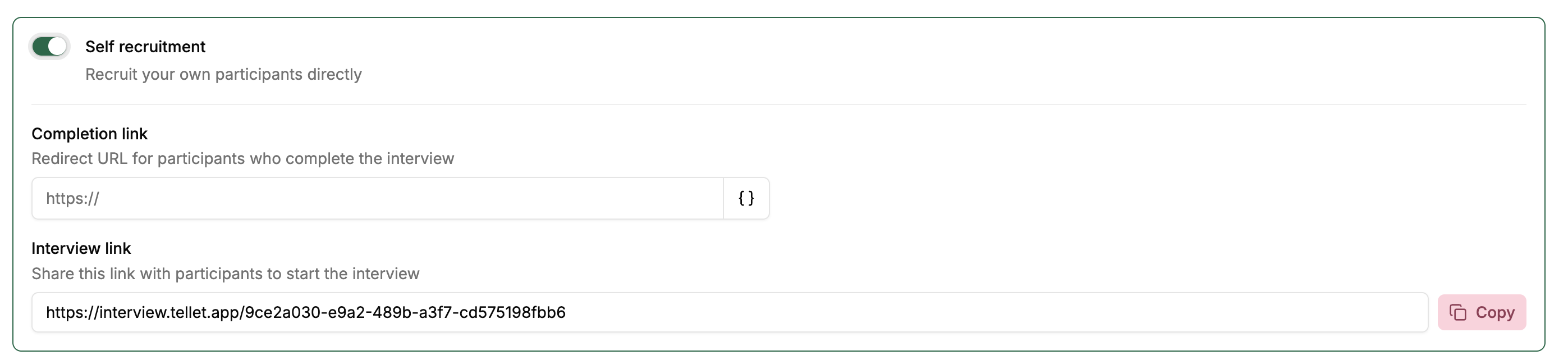
Interview link
Copy the Interview link and share it with your participants. Everyone who opens it goes straight to your study.
Participants don't need an account, so a plain interview link doesn't tell you who completed the interview. To tell participants apart, add a unique participant_id to each person's link, for example ?participant_id=XXXX. Tellet stores the ID with their interview. To show it in the transcripts table, add participant_id as a custom variable (see Variables below).
Completion link
Optionally, add a Completion link: a web address participants are sent to after they finish the interview, such as your website or a thank-you page. Leave it empty and participants simply see the end screen.
Panel recruitment
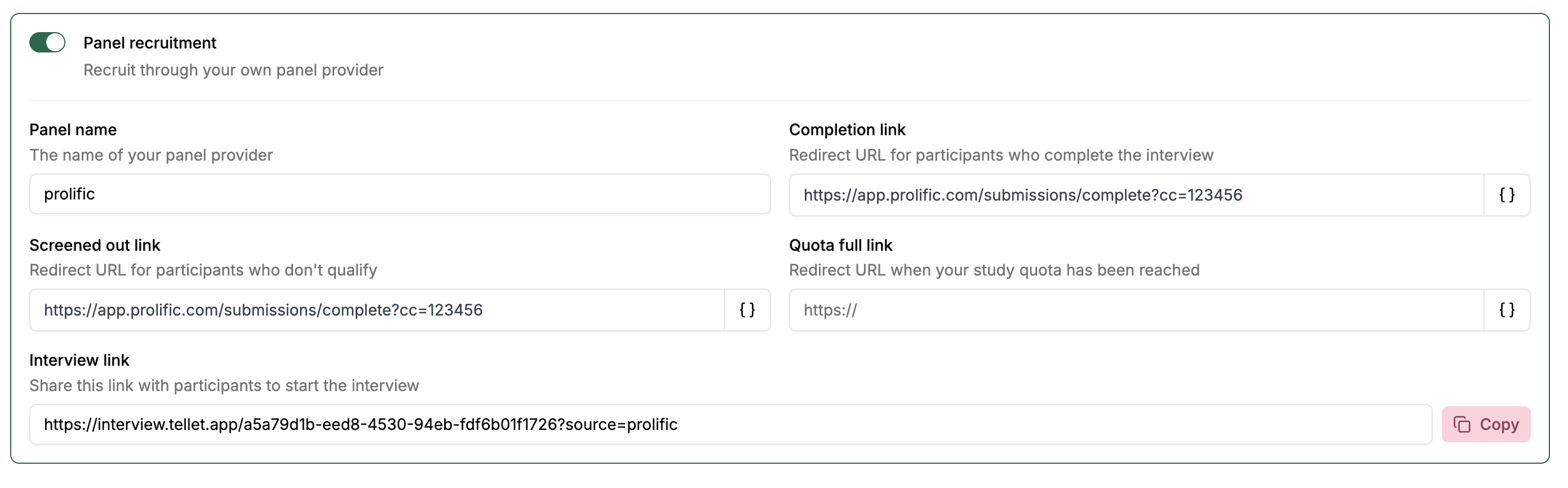
Turn on Panel recruitment to recruit through a panel provider such as Prolific or Cint. Use Add new panel to set up more than one provider. Each panel gets its own card and its own interview link.
Panel name
The name of your panel provider. It's added to that panel's interview link (as source=<panel name>), which is how Tellet knows which panel a participant came from and where to send them back to. Each panel name must be unique.
Return links
These are the web addresses your panel provider gives you, so participants can be marked as complete or screened out in their system.
Completion link (required): where participants go after they finish the interview.
Screened out link: where participants go if a screening question disqualifies them.
Quota full link: where participants go if they qualify, but the screening quota for their answer is already full. If you leave this empty, they're sent to the screened out link instead.
When a participant reaches the end, is screened out, or hits a full quota, they see a short countdown and are then redirected. They can also cancel or copy the link instead.
Interview link
Copy the Interview link and paste it into your study setup at the panel provider.
Check your setup with the Test button before you publish. Test interviews don't need the required variables, so you can try the flow without a real participant ID.
Variables
Variables are URL parameters that pass information into the interview and back out again, such as a panel participant ID. You’ll only need variables if you want to record and show the variables in the transcript grid.
Open the list with the Variables button at the top of the page.
Built-in variables
Tellet includes the variables most panels use:
sourcePROLIFIC_PIDSTUDY_IDSESSION_IDtransaction_id
Custom variables
To add your own, type a name at the bottom of the list and click Add. Names can contain letters, numbers and underscores and must start with a letter. Capitalisation is kept exactly as you type it, so it matches what your panel sends.
Required variables
Mark a variable as Required when every participant must arrive with it, typically the panel's participant ID. If a required variable is missing from a participant's link, they can't start the interview and see a message instead.
Required variables only apply once at least one panel has a name. They don't apply to test interviews.
When a variable is required, the interview link shows a reminder to add it before you share the link, for example ?source=Panel&transaction_id={{transaction_id}} (the exact format comes from your panel provider).
Passing variables back to the panel
To send a value back in a return link, click the variable icon in the link field and choose Insert variable. This adds a placeholder like {{transaction_id}}, which is replaced with the participant's own value when they're redirected.
For example, https://panel.example.com/complete?transaction_id={{transaction_id}} sends each participant back with their own ID.
Where variables show up
The values each participant arrived with appear in the transcripts table and on the Profile tab of each transcript, so you can filter by them. See Transcripts.
Specific panel examples
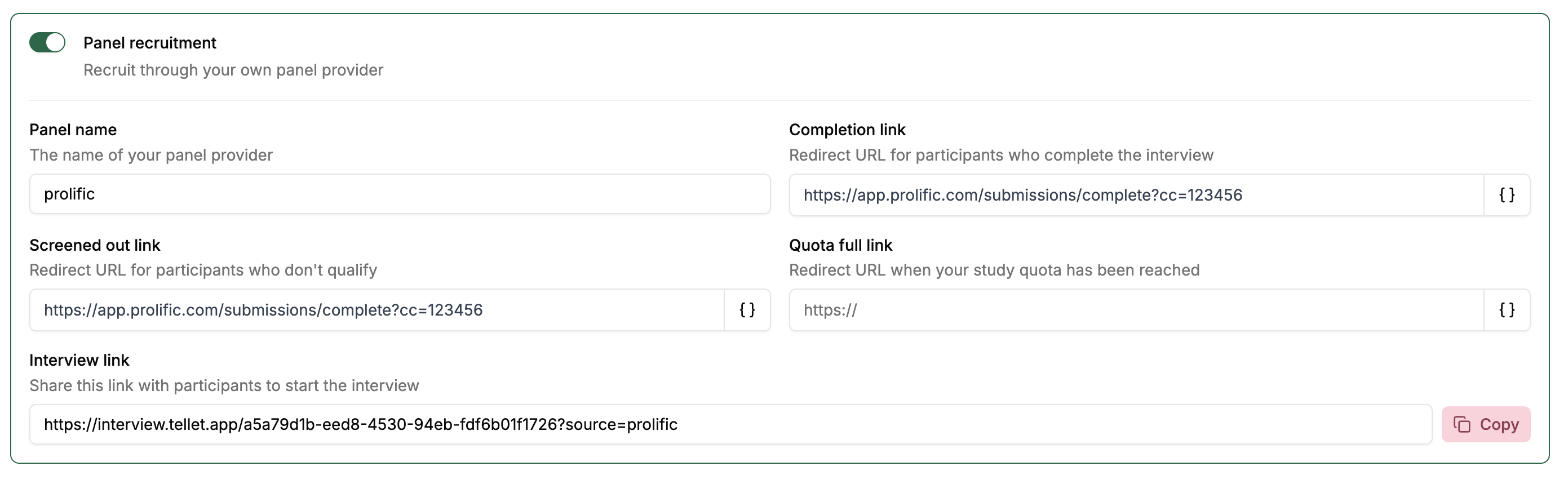
Prolific
Copy Tellet interview link, for example https://interview.tellet.app/632100f8-120c-4cd2-acfb-4720ad4c3a5e?source=prolific
Paste the link under Data collection in Prolific study setup and select “URL parameters”. Prolific will append them automatically.
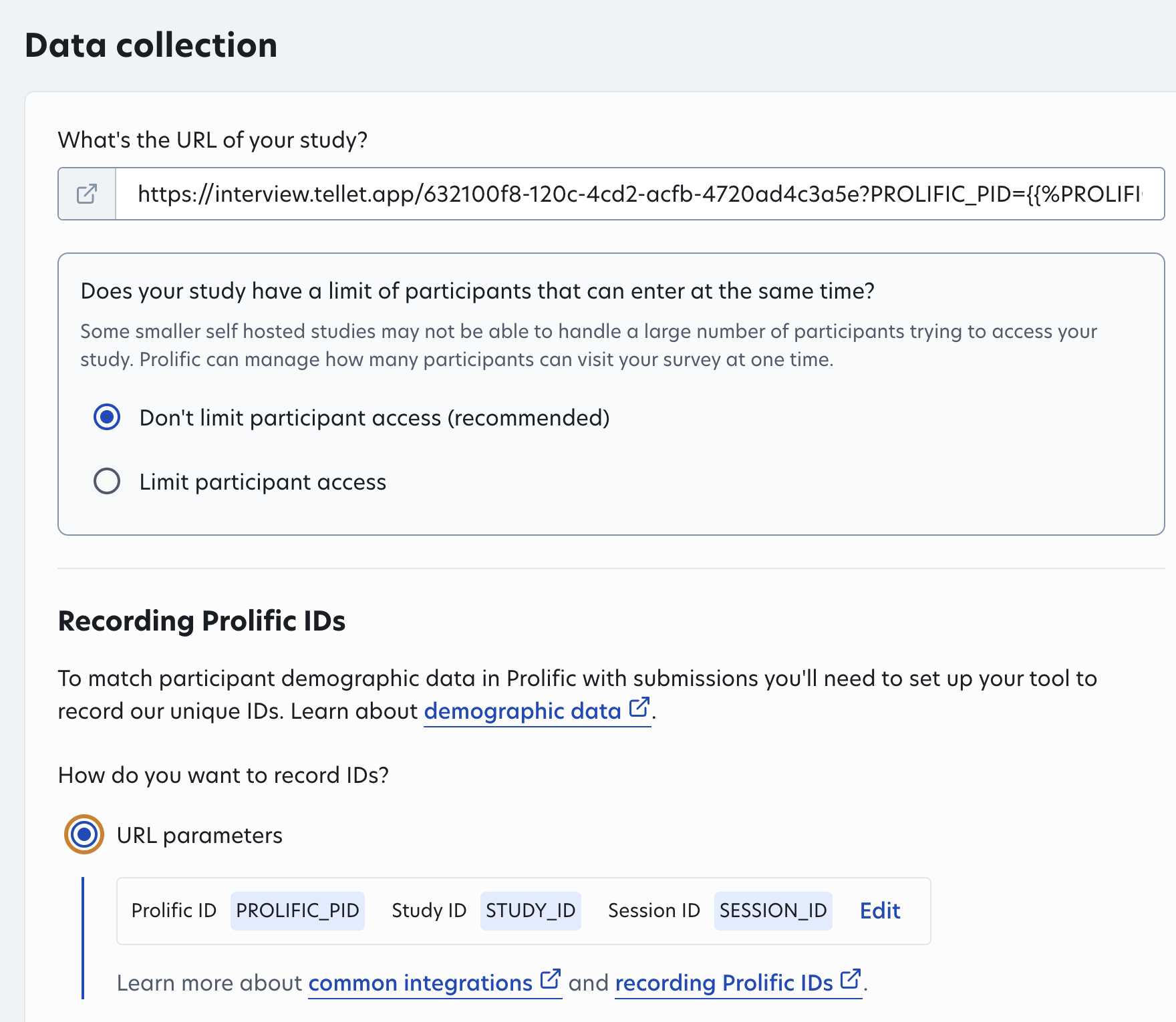
Copy completion link and screen out links in Prolific and paste them into Tellet.
Dynata
Copy Tellet interview link, for example https://interview.tellet.app/632100f8-120c-4cd2-acfb-4720ad4c3a5e?source=dynata and paste it in Dynata
Add custom variables
psidand any other variables you want the panel to pass, for example,age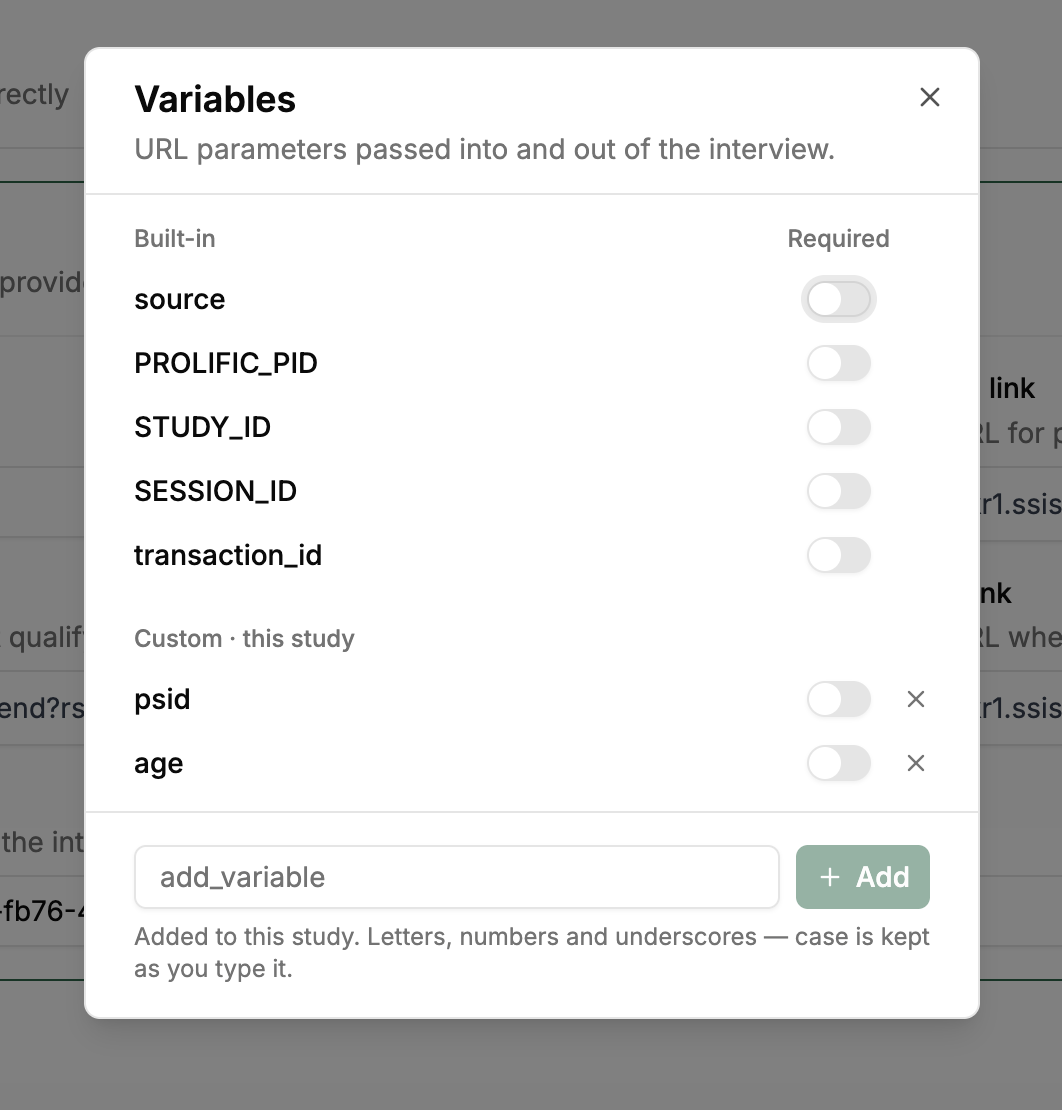
Copy screen-out and quota full links from Dynata and paste them to Tellet. Add the variable
psidby selecting it next to the input.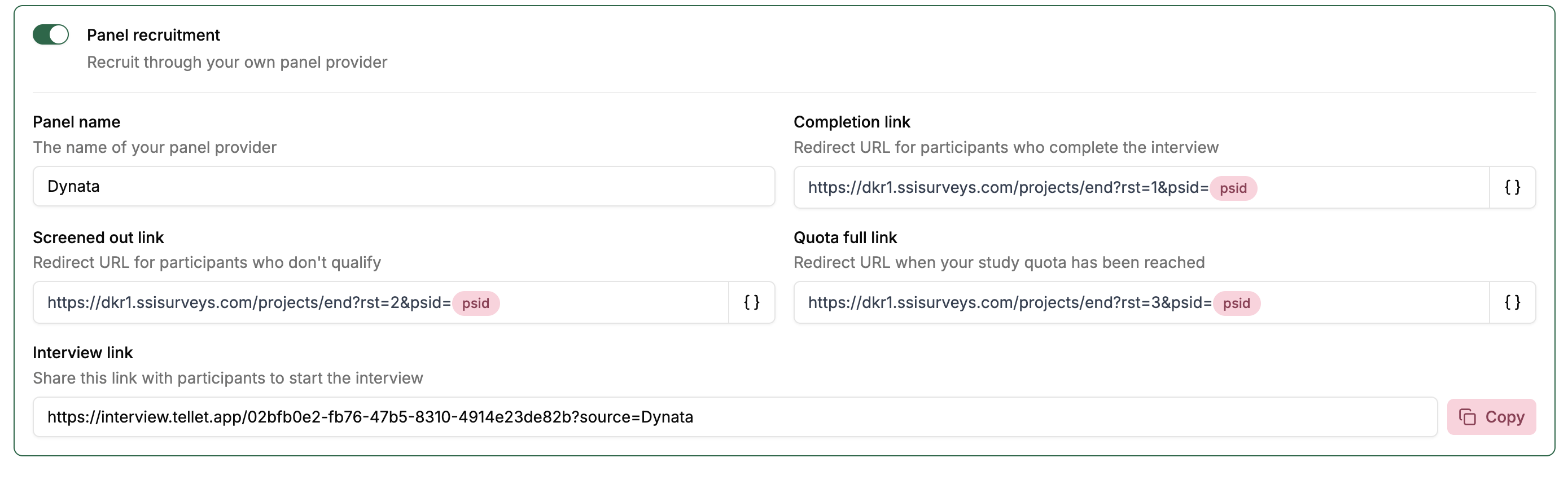
Norstat
Norstat identifies each participant with a WASEID. Tellet needs to receive it in the interview link and send it back in every return link, so Norstat can mark the participant as complete, screened out or quota full.
Open Variables at the top of the Recruitment page, add
WASEIDas a custom variable and mark it as required.Turn on Panel recruitment and enter
Norstatas the Panel name.Paste the end links Norstat gives you into Tellet: the complete link into Completion link, the screen-out link into Screened out link and the quota full link into Quota full link. Each Norstat link ends in
?waseid=.In each of the three fields, click the variable icon
{ }at the end of the field, choose Insert variable and selectWASEID. Each link should now end in?waseid={{WASEID}}, for examplehttps://webs.norstatsurveys.com/end/<your-project-id>/<your-end-link-id>?waseid={{WASEID}}.Copy the Tellet Interview link, for example https://interview.tellet.app/632100f8-120c-4cd2-acfb-4720ad4c3a5e?source=Norstat. Add the
WASEIDparameter to it before you send it to Norstat, so each participant arrives with their own ID. Check the exact placeholder format with your Norstat contact.Click Test to try the flow, then publish.
If
WASEIDis missing from a participant's link, they can't start the interview. If it's missing from a return link, Norstat can't match the participant and won't register their status.
Limiting the number of participants
Set Max participants on the Quotas page (Study > Recruit > Quotas) to stop the study once that many interviews are completed. After that, new participants see a message that the study is full.
The same page lets you set quotas on a screening question, to control how many participants you get for each answer. See Screening questions.
Before you publish
Tellet checks your recruitment setup when you publish. You'll be asked to fix:
a panel without a Panel name, or two panels with the same name
a panel without a Completion link
any link that isn't a valid web address (it must start with
https://orhttp://)
Changes to recruitment take effect after you republish the study.