
Tellet (v2)
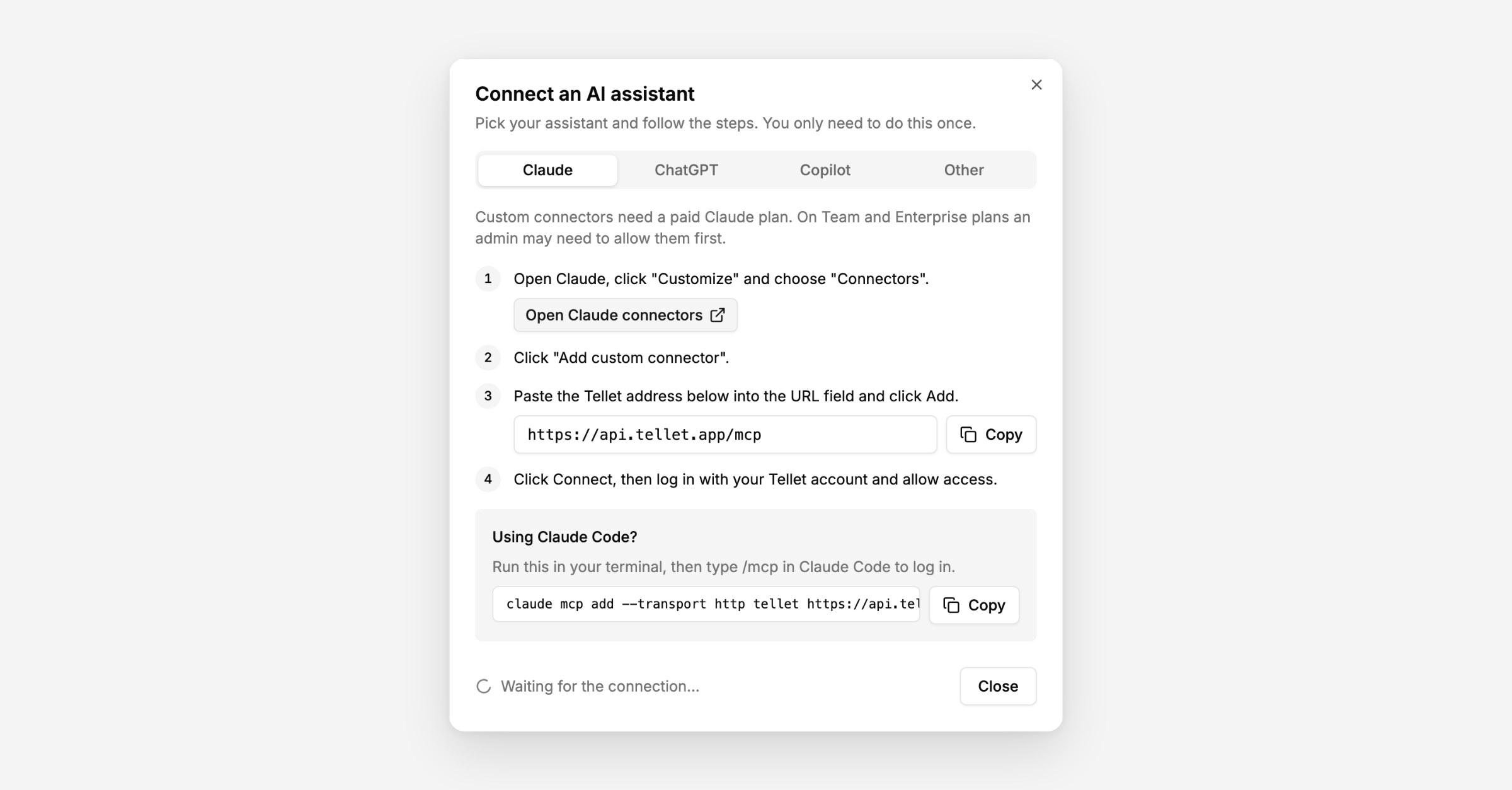
You can connect an AI assistant such as Claude, ChatGPT or Microsoft Copilot to your Tellet account. Once connected, you can ask it questions about your research in plain language, for example "Summarise the interviews in my pricing study" or "What did participants say about onboarding?", and it looks the answers up in Tellet for you.
The connection uses MCP (Model Context Protocol), an open standard that AI assistants use to connect to other tools.
The assistant works as you. It can see exactly what you can see in Tellet, and nothing more. If you lose access to a study, so does the assistant.
It can:
List the studies you have access to
Read a study's design: goal, AI interviewer persona, languages, screening questions and interview questions
List the interviews in a study, with status, language and duration
Read a full interview in the participant's own words
Show every participant's answer to a single question
The assistant is read-only. It cannot publish, delete or edit studies, invite people or change settings.
Test interviews and archived transcripts are not included in what the assistant sees.
You need a Tellet account with access to at least one study.
Your AI assistant must support custom MCP connectors. For Claude and ChatGPT this usually means a paid plan. On a Team or Enterprise plan, an admin may need to allow custom connectors first.
In Tellet, open the user menu in the sidebar and choose Connect AI assistant.
Pick your assistant and copy the Tellet address shown in the dialog.
Follow the steps for your assistant below.
When your assistant asks you to log in, sign in with your normal Tellet account and click Approve on the "Connect to Tellet" screen.
The Tellet dialog shows Connected as soon as the connection works.
In Claude, go to Settings → Connectors and click Add custom connector.
Note: If you’re on a Team or Enterprise plan, you will need to reach out to your Claude organisation admin to set up connector.
Give it a name, such as "Tellet", and paste the Tellet address.
Click Connect and log in to Tellet when asked.
Claude Code: run claude mcp add --transport http tellet <Tellet address>, then type /mcp in Claude Code to log in.
In ChatGPT, go to Settings → Apps & connectors → Advanced and turn on Developer mode.
Back in Apps & connectors, click Create.
Paste the Tellet address and choose OAuth as the authentication.
Log in to Tellet when asked.
Codex: run codex mcp add tellet --url <Tellet address>, then codex mcp login tellet.
Copilot connectors are added by an admin in Copilot Studio:
Open your agent in Copilot Studio and go to Tools → Add a tool → Model Context Protocol.
Paste the Tellet address and choose OAuth 2.0 as the authentication.
Publish the agent. Each user logs in to Tellet the first time they use it.
Any assistant that supports remote MCP servers with OAuth login can connect. Add a new MCP server or connector, paste the Tellet address, and log in to Tellet when asked.
"List my studies from the last month."
"Summarise the interviews in the [study name] study."
"What were the most common answers to the question about pricing?"
"Pull three quotes from participants who were unhappy with delivery times."
"Compare how participants in the UK and Germany answered the first question."
"Review the interview questions in my draft study and suggest improvements."
Tip: name the study in your prompt. The assistant then goes straight to the right one instead of searching.
Go to Account settings → Connected apps. Every assistant you've connected is listed with the date you connected it.
Click Revoke access next to the assistant and confirm.
The assistant loses access straight away. To use it again, connect it again.
You log in with your normal Tellet account. You never create or share API keys.
The assistant only sees what you can see in Tellet.
Interview content comes from participants, and the assistant treats it as data, not as instructions.
What you share with your AI assistant is also covered by that assistant's own terms and data policy. Check your organisation's policy on AI tools before connecting.
Questions? Contact [email protected].