Tellet (v2)
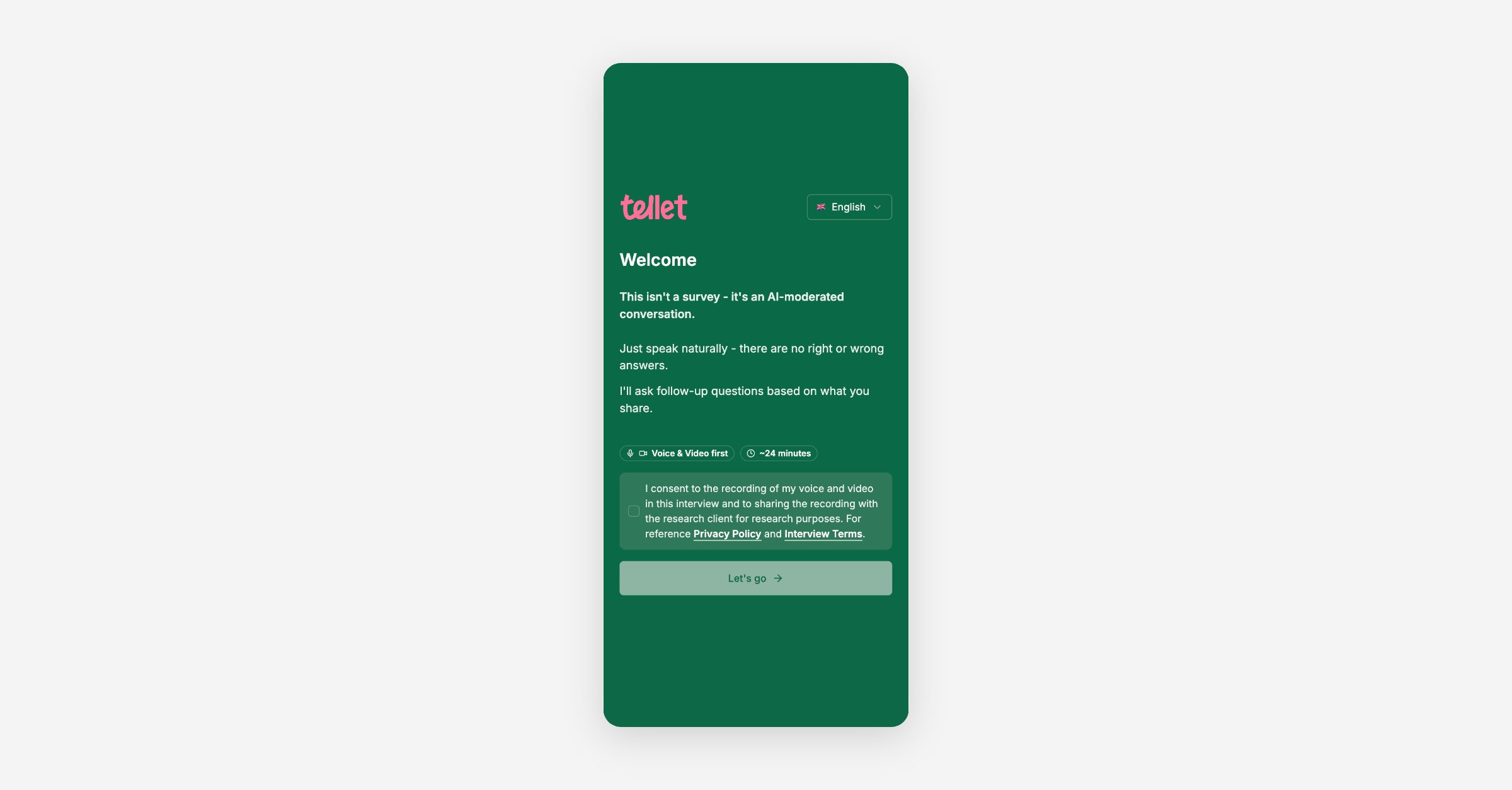
Participants land on a consent screen — a language dropdown next to the study's logo, a short intro explaining this is a conversation rather than a survey, badges showing the expected response modes and an estimated duration, and a consent checkbox that must be ticked before the "Let's go" button becomes active.
Duration of the study is calculated based on the number of questions (50 seconds on question and 50 additional seconds if probing is setup) and is visible in the discussion guide.
The consent text always mentions recording voice and video, even for studies that only collect text — that wording doesn't change based on what response modes a study actually allows. It links to Tellet's Interview Terms, and to the study's own Privacy Policy if one is configured.
Participants pick their language from the dropdown on the consent screen. Tellet decides their starting language for them first: it checks for a previously-saved language cookie, then the participant's browser language, then falls back to the study's first allowed language — there's no way to set it via a link parameter. Whatever that resolves to is what they see first; they can change it from the dropdown from there.
For Arabic, Hebrew, Persian, and Urdu, the whole interface — not just the text — lays out right-to-left.
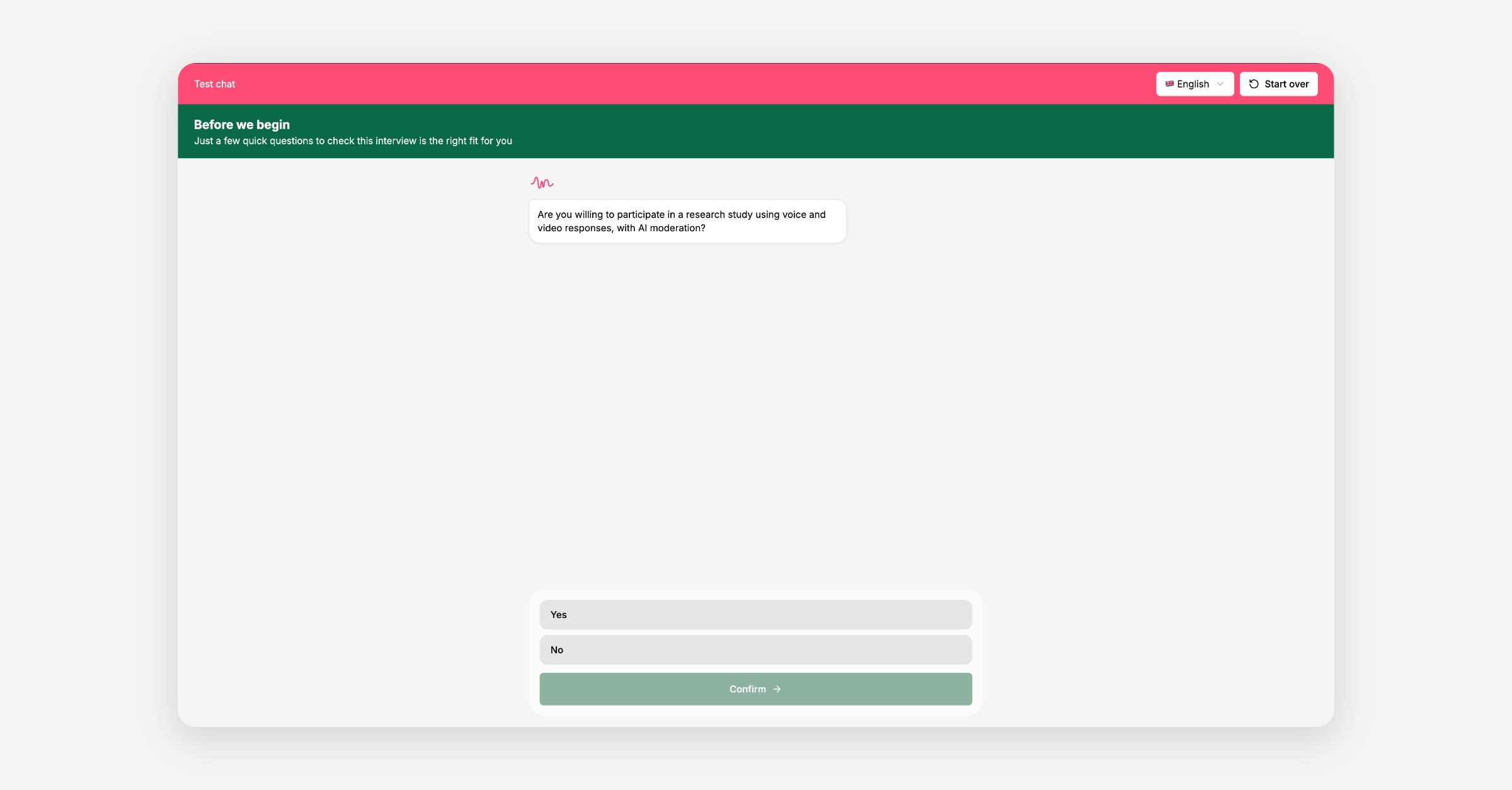
If a study has screening questions, they come first, in the same chat interface as the rest of the interview. Each one asks for a single choice, multiple choices, a number, or a rating — never open text — and is evaluated the instant the participant answers, with no wait, since it's checked against the researcher's qualify/disqualify rules directly rather than judged by the AI.
If every answer qualifies, the participant sees a brief "Loading interview" transition and moves straight into the real interview questions. If any single answer disqualifies them, everything stops immediately at that question — no further screening or interview questions are shown — and they see a message letting them know they're not the right fit for this study. If they were recruited through a panel with a return link configured, they see a short countdown and are automatically redirected to that link, the same as on the completion screen, with the option to cancel or copy the link instead; otherwise it's just the message.
If a screening question has quotas enabled and the participant's answer would otherwise qualify them, but that answer's quota is already full, they see a separate quota full message instead of continuing — they aren't told they were disqualified, since their answer was correct, there just wasn't room left for it. As with disqualification, this automatically redirects back to the panel if a return link is configured for that outcome.
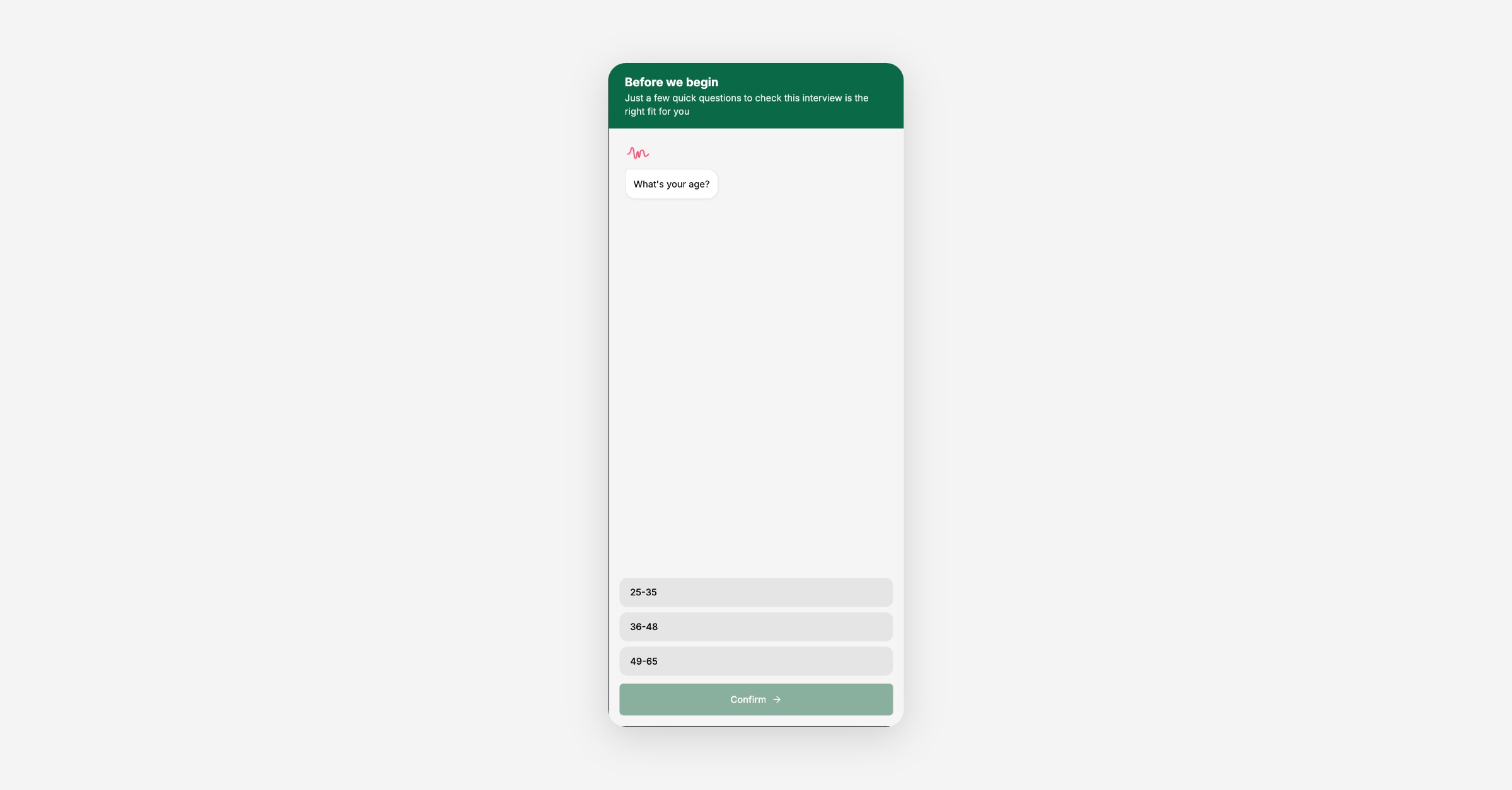
Once consent is given, the participant lands in the chat. For each question, they respond using whichever modes the researcher has allowed: text, voice, video or image.
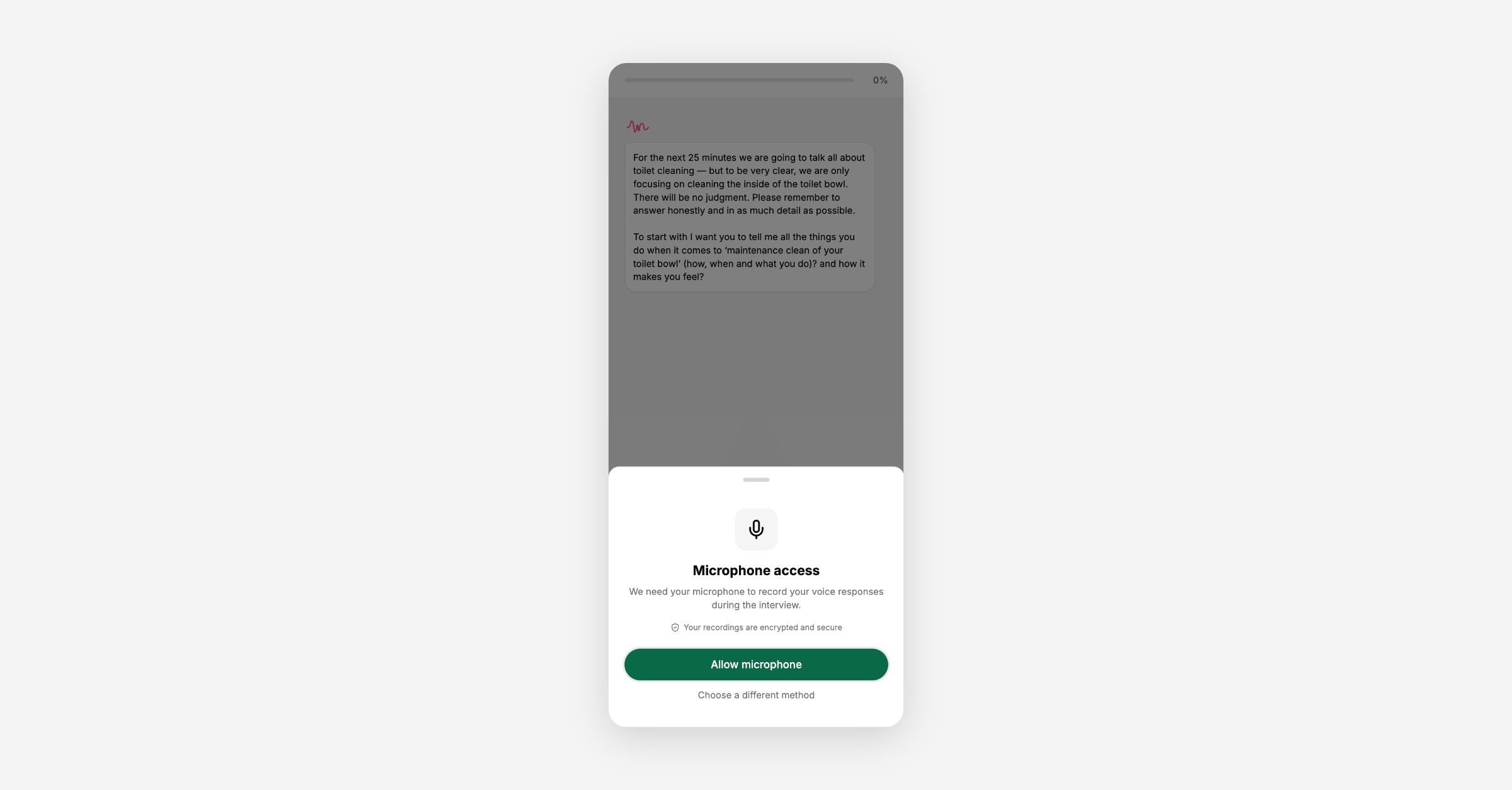
Before recording, the participant sees an in-app permission screen explaining why the microphone or camera is needed, followed by a quick mic/camera check ("Try saying something" / "Make sure your face is visible and well-lit") before recording starts. After recording, they can preview their answer and re-record before sending. If sending fails — a network hiccup, an upload error — Tellet keeps the recording locally and offers a retry, so nothing is lost.
Some questions ask for a specific kind of answer instead of free text or media — a single choice, multiple choices, a rating scale, or a number — depending on how the researcher set the question up.
If a participant closes the tab partway through, reopening the same link in the same browser picks up exactly where they left off. This works via a long-lived session tied to that browser, not anything stored against their answers directly — so switching devices or browsers, or clearing cookies, starts a new session rather than resuming the old one.
At the end, participants are asked to rate the interview from one to five stars (labelled Terrible to Amazing) alongside a short thank-you message. There's no follow-up text field — just the rating — and nothing forces them to leave one before closing the tab.
If the study has a completion redirect configured — for panel recruitment, or a custom link for self-recruited participants — the participant sees a short countdown and is automatically redirected, with the option to cancel or copy the link instead. Without a redirect configured, the screen just ends there.
If someone reopens their link after finishing, they'll see the same rating screen again until they've actually submitted a rating — after that, returning shows a simple "already completed" message instead.
A few situations prevent someone from starting an interview at all, each with its own message: the study hasn't been published yet, it's already been completed, it's reached its maximum number of participants, the link is missing information it requires (common with panel integrations that need tracking parameters), or the link doesn't match a real study. Being disqualified by a screening question, or qualifying into a screening quota that's already full, shows its own message too, mid-interview rather than before it starts.
Running a test interview (via the study's Test button) skips consent entirely and shows a "Test chat" banner instead. Test responses don't count toward your participant limit and stay separate from real results. A Start over option resets the test conversation from scratch, and if the study allows more than one language, switching languages from the test banner also restarts the conversation in that language.