
Tellet (v2)
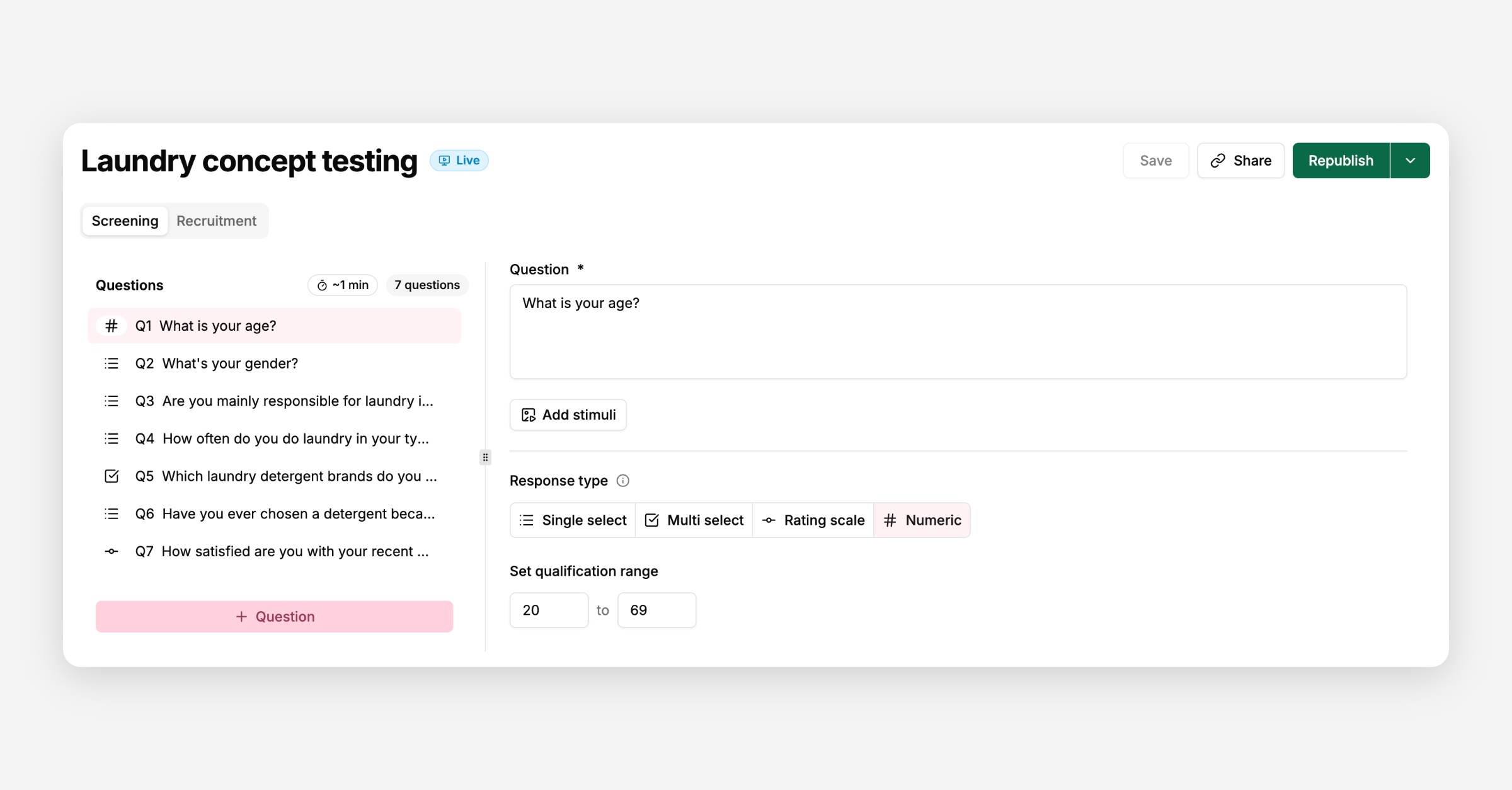
Screening questions let you filter participants before they join your study. They run first, before any interview questions, and decide whether a participant qualifies to continue or is screened out.
Unlike interview questions, screening questions are answered against rules you set up in advance — there's no AI judgement involved, so participants get an instant qualify/disqualify decision as soon as they answer.
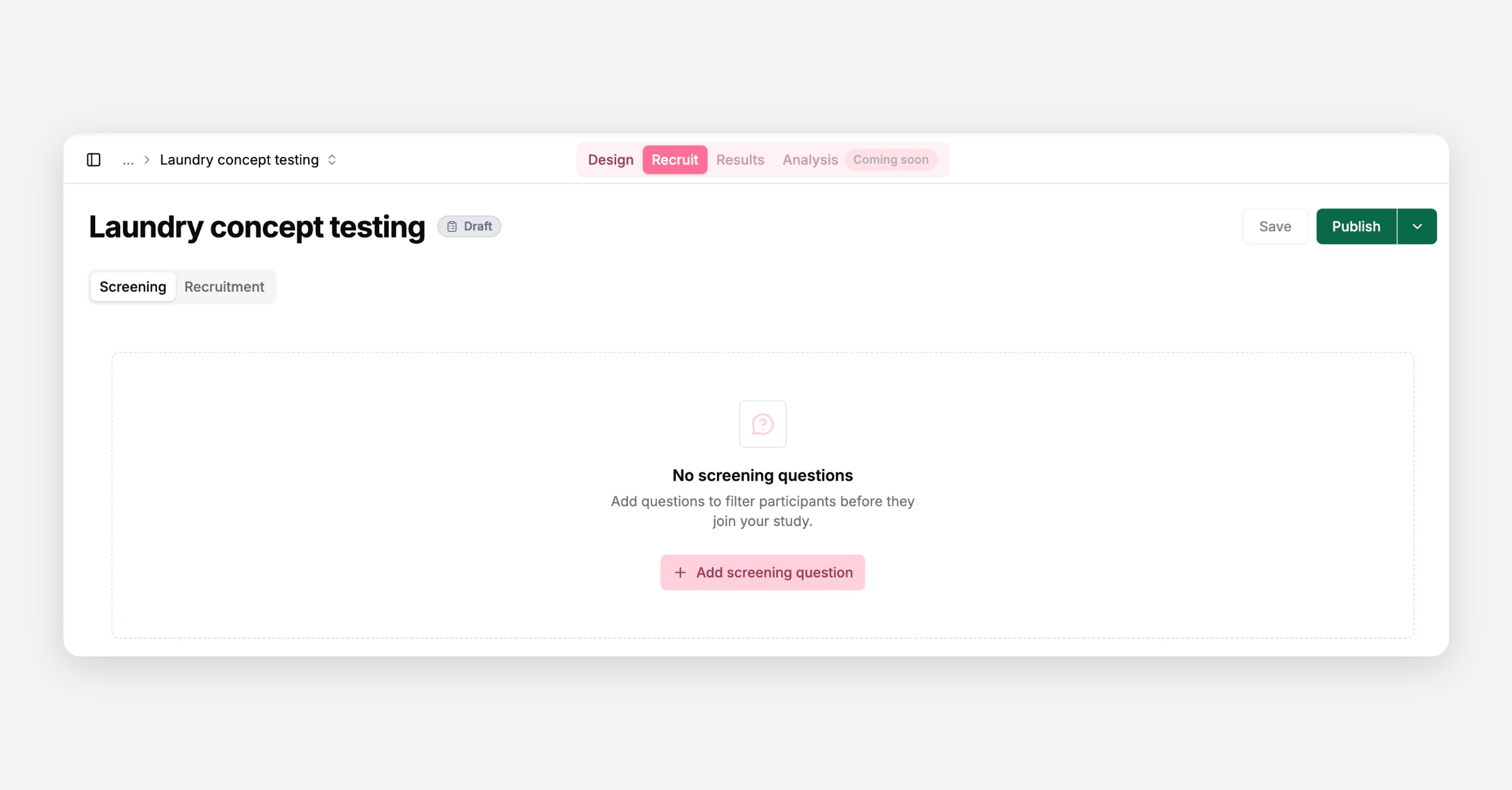
Go to your study's Recruit → Screening tab and select Add screening question.
Screening questions are simpler than interview questions — there's no introduction text, no response examples, and no probing goal, since they're only used to qualify or disqualify participants, not to hold a conversation. Every screening question must be answered to continue; there's no optional screening question.
You can add up to 25 screening questions per study. Each answer option can be up to 100 characters long.
Each screening question uses one of four response types, and each type decides qualification differently:
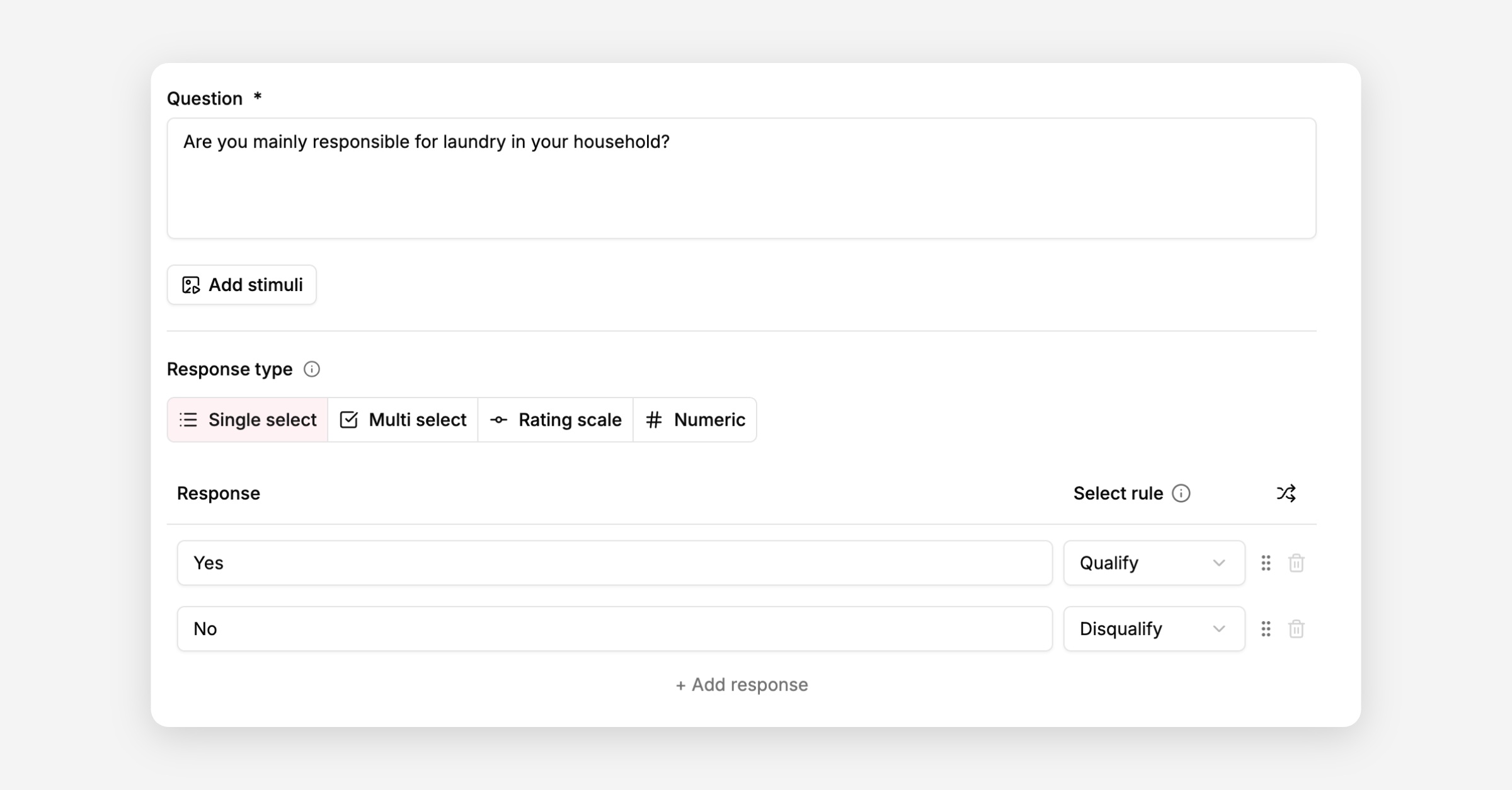
Participants pick one option. Set each option's select rule to:
Qualify — selecting this option qualifies the participant
Disqualify — selecting this option disqualifies the participant
At least one option must be set to Qualify.
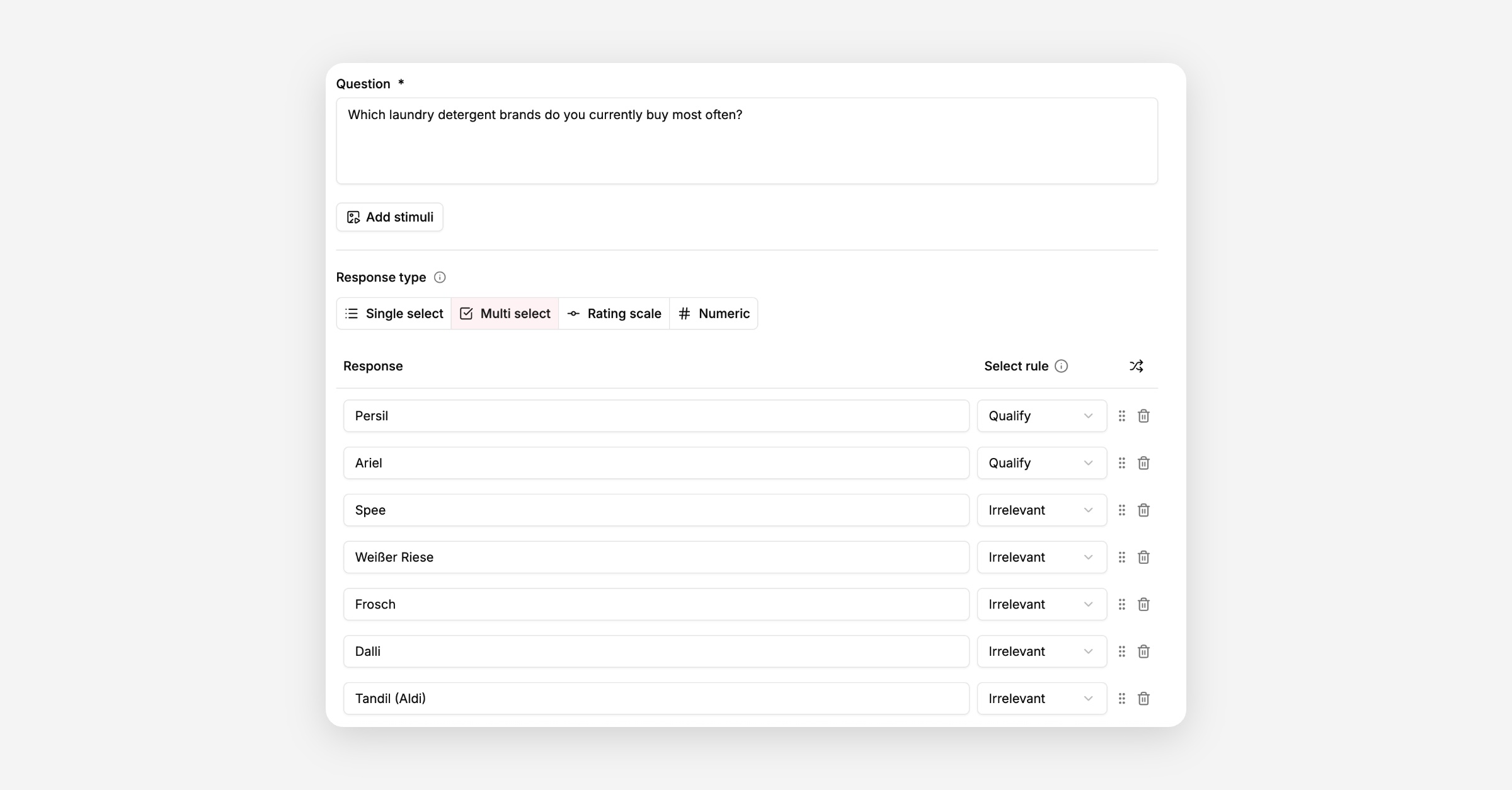
Participants can pick multiple options. Each option's select rule can be:
Qualify — qualifies the participant if selected
Disqualify — disqualifies the participant if selected, even if they also selected a qualifying option
Irrelevant — has no effect on its own; a participant who only selects irrelevant options doesn't qualify
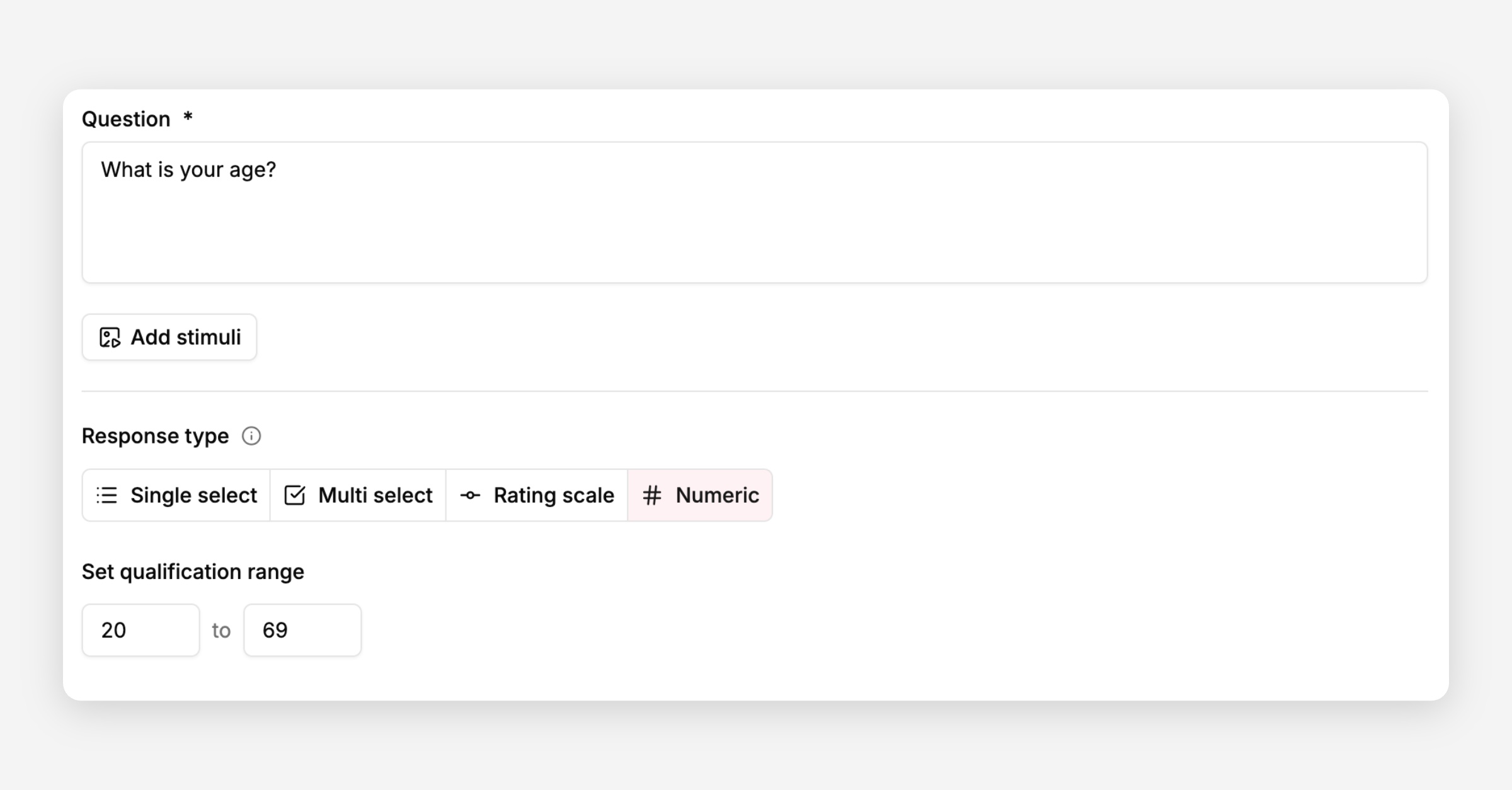
Set a qualification range (minimum and maximum). Answers outside that range disqualify the participant.
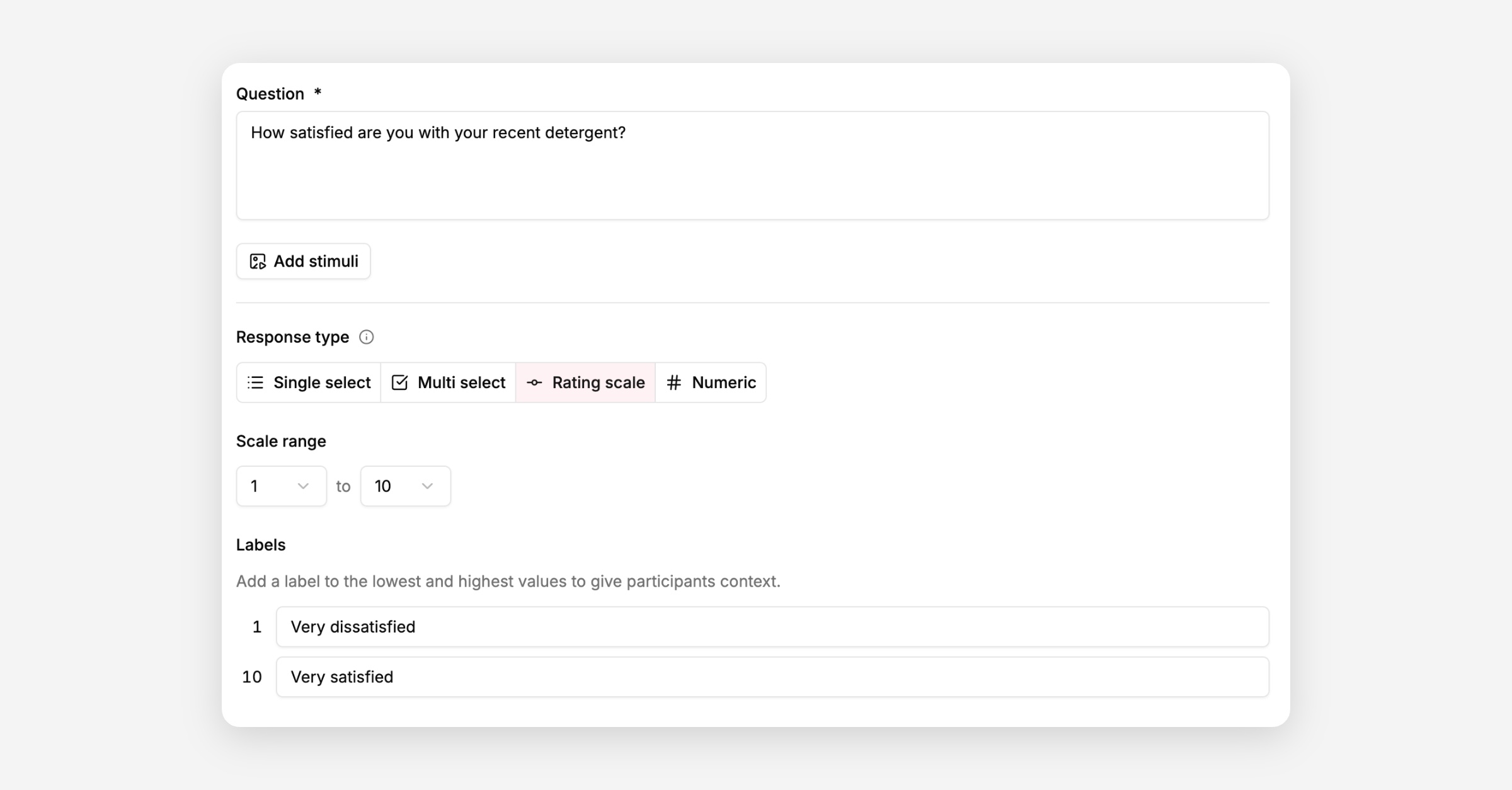
Rating scale questions never disqualify a participant — they're collected as a metric only, not used to screen.
Answer options can be reordered, and for select questions you can turn on randomisation to shuffle the order they're shown in.
Changing a question's response type after it's been set up can affect its configuration. If the question has screening quotas enabled, Tellet warns you before applying the change, since switching away from single select clears the quota setup.
Quotas cap how many participants can qualify through a specific answer on a single-select screening question, so you can balance your sample across groups like age bands or customer segments instead of letting one group fill the study. Quotas can be enabled on only one screening question per study.
Set a response limit for your study. The Enable quotas toggle stays disabled until you do.
Open a single-select screening question and turn on Enable quotas.
Assign a quota to each qualifying answer option.
Quotas are only available on single-select screening questions; multi-select, numeric, and rating scale questions don't support them.
If you change a single-select question's response type after enabling quotas on it, Tellet shows a confirmation warning that the type change will clear its screening quotas configuration. Confirm to apply the type change and clear quotas, or cancel to keep the question as a single select with quotas intact.
Every qualifying answer option needs a quota target above zero. Tellet rejects a quota of 0% on a Qualify answer, since a zero target would mean that option could never qualify anyone.
Once an answer option's quota is reached, participants who select it are sent to the quota full page instead of qualifying, the same page shown when your study reaches its overall response limit.
On a single select question, you can turn on the Enable quotas toggle to cap how many respondents qualify through each answer option. Assign a quota to every Qualify option; percentages must add up to 100%, and a question can't mix percentages with absolute numbers across its options. Every Qualify option needs a target above 0: Tellet blocks saving or publishing a quota setup that leaves any Qualify answer at 0.
Tellet calculates each option's target from the study's Max Participants setting, plus the same 10% buffer that applies to the overall participant limit. Once an option's target is reached, a respondent who selects it no longer qualifies: they see the quota full screen instead of moving on to the next question or the main interview, even though their answer would otherwise have qualified them.
Quotas are only available on single select questions; multi select and numeric questions don't support per-option quotas.
As soon as an answer disqualifies a participant, the flow stops immediately: no further screening or interview questions are shown, and the participant lands on the screened out page.
If you're recruiting through a panel, set a Screened out link in the Recruitment tab. When it's configured, the disqualified participant sees a short countdown and is automatically redirected to that link, the same as on the completion screen, with the option to cancel or copy the link instead. Self-recruited participants (e.g. via a shared link) just see the message, with no redirect.
This is different from the Quota full link, which is shown when a participant couldn't be included even though they weren't disqualified: either the study as a whole has already reached its maximum number of participants, or the participant qualified on a screening question whose answer quota is already full. The same automatic redirect applies here when a Quota full link is configured.
Go to your study's Results → Overview tab and scroll to the Screening results section. It only appears when your study has screening questions, and shows "No screening question responses yet" until the first participant answers.
Each screening question gets its own chart, titled with the question text:
Single select and multi select — one bar per answer option. Options set to Disqualify aren't shown here; participants who chose them appear in the screened out funnel instead.
Rating scale — one bar per point on the scale, including the labels you set for the lowest and highest values.
Numeric — answers are grouped into up to five ranges.
Use the toggle in the top-right corner of each chart to switch between percentages and counts. Counts are shown out of the number of participants who answered that question. Hover over a bar to see both.
If the question has screening quotas enabled, each bar shows how full that option's quota is instead. The bar's length reflects the option's target, and it fills up as participants qualify through it, changing colour once the quota is reached. In percentage view you'll see how full the quota is (this can go over 100%); in count view you'll see qualified participants out of the target. Only participants who are in progress or have completed the interview count towards a quota.
Test runs and archived transcripts are never included.
To read the individual answers, go to the
Results → Transcriptstab and select Filter. You can filter transcripts by their answers to any screening question.
The Results → Overview tab shows this in two places. Both appear only when your study has screening questions, and both leave out test runs and archived transcripts.
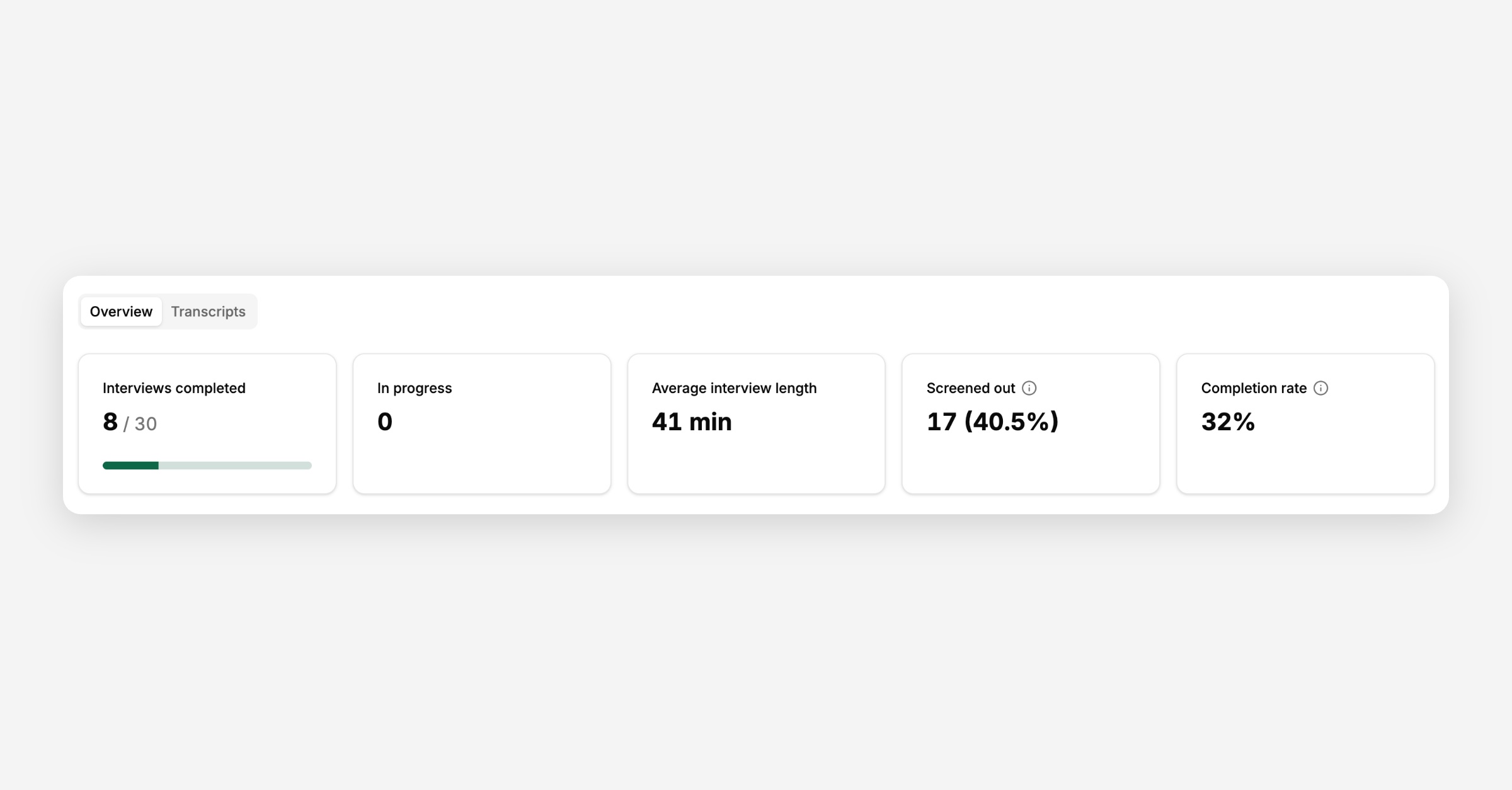
The Screened out card at the top of the page shows the number of participants who were screened out, and what percentage of all participants that is.
A high screen out rate (a low incidence rate, or IR%) can mean your screening criteria are too strict.
Participants who were screened out aren't counted in the Completion rate card next to it, which only looks at participants who passed screening.
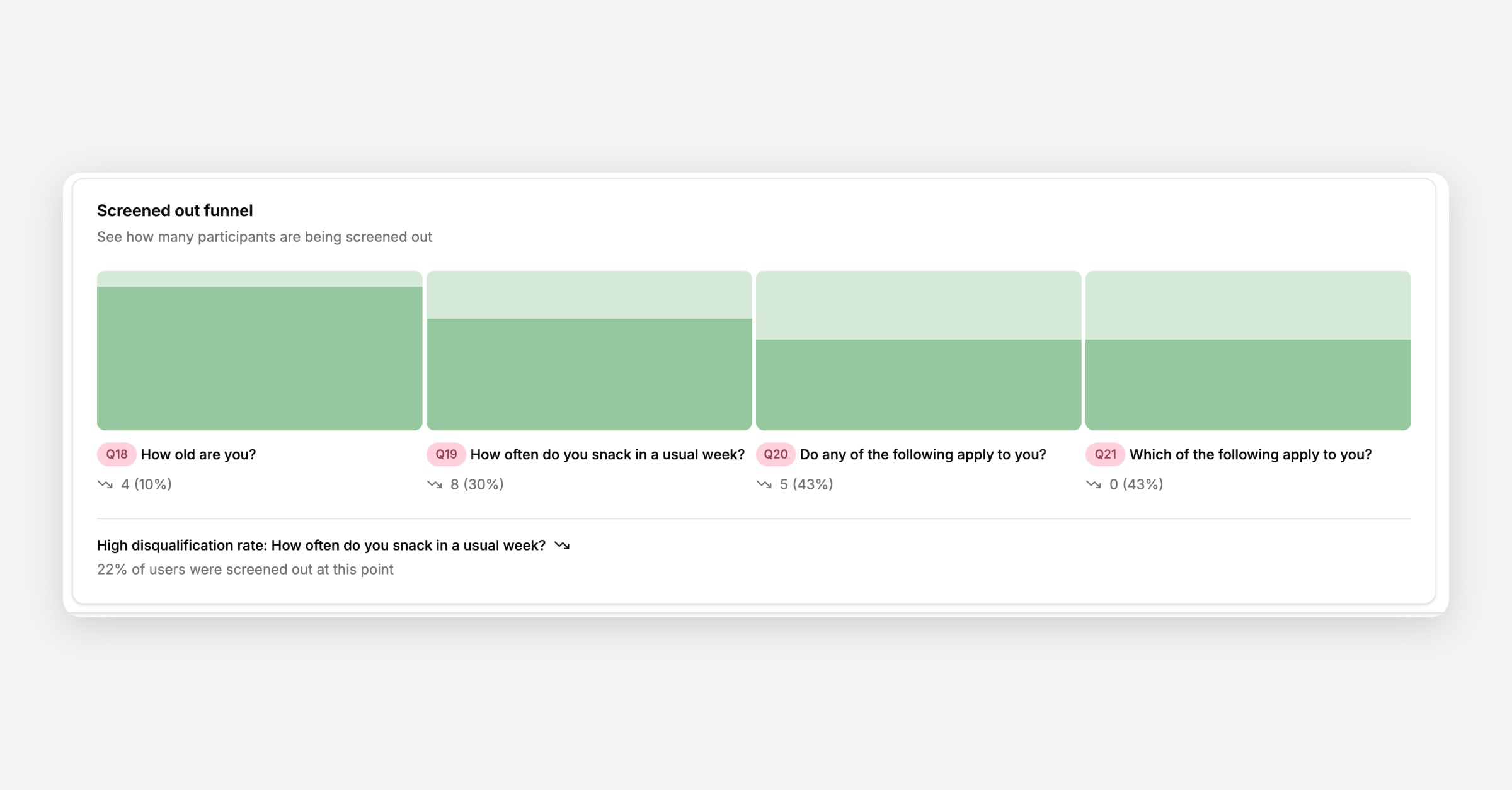
The Screened out funnel shows where in your screening flow participants drop out. Each column is one of your screening questions, in order, and shows:
The count — how many participants were screened out at that question
The percentage — the running total of everyone screened out up to and including that question, out of all participants who answered the first screening question
Below the funnel, Tellet highlights the question with the highest disqualification rate: the share of participants who reached that question and were screened out there. Start here if you want to loosen your criteria.
The funnel follows your current screening questions. If you've removed a question since launching, its answers still appear under Screening results, but it no longer has a column in the funnel.