
↵Openen
Tellet changelog
Wijzigingslogboek
De nieuwste releases en verbeteringen van Tellet.
Invite guests to your workspace
You can now invite people from outside your organisation, such as your clients, as guests. A guest only sees the workspaces you invite them to, and only the study pages you choose. Nothing else in your organisation is visible to them.
For example, you can invite your client's team to review the results of their own studies, without giving them access to any other client's work.
What a guest can do
See only what they're invited to. Guests don't see your organisation's shared workspaces, only the ones they were invited to. You can invite a guest to more than one workspace.
View, never edit. Guests always have Can view access. They can't create or change studies or workspaces, and can't open organisation settings.
See only the pages you pick. Choose which study pages each guest can open: Study design, Results and Analysis. The Recruit page is always hidden for guests.
Pages a guest can't access are hidden from their study navigation. If they open one by direct link, they see a no access message.
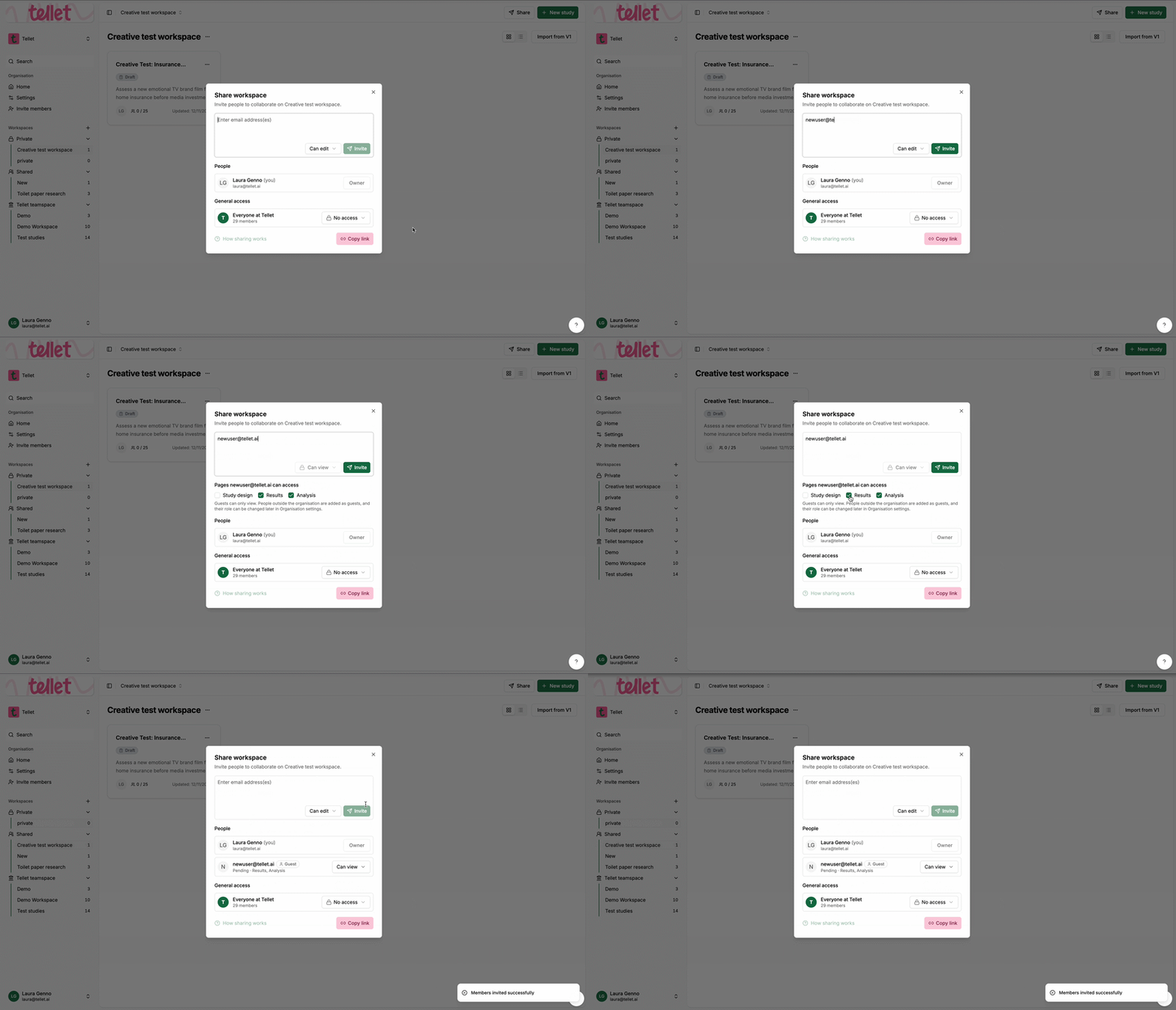
Invite a guest
Open a workspace and click
Share.Enter the person's email address and pick the Guest role.
Under Pages guests can access, choose the pages. Results and Analysis are selected by default.
Send the invite.
Change a guest's access
Pages: open the guest's access dropdown in
Shareand tick or untick pages. Changes apply the next time they load a page, with no new invite needed. At least one page always stays selected.Role: when a guest becomes part of your team, change their role to Editor or Admin to give them full access from Member management
Also new: Can view and Can edit for workspaces
Every workspace now has two access levels, for named people and for Everyone at your organisation:
Can view: see studies and results.
Can edit: create and edit studies.
If someone has both a personal level and the organisation-wide level, the higher one applies. Editors in your organisation now also see all shared workspaces.
Build and analyse studies from Claude, ChatGPT or Copilot

You can now connect your AI assistant to Tellet and have it work on your research with you. Ask it about your results, and ask it to set up or change a study.
The AI assistant connection uses MCP (Model Context Protocol), the open standard that Claude, ChatGPT, Microsoft Copilot and other assistants use to connect to other tools.
Ask about your research
The assistant can read everything you can see in Tellet:
Your studies, with completed, in-progress and abandoned interview counts
A study's design: goal, AI interviewer persona, languages, screening and interview questions
Every interview, in the participant's own words
Every participant's answer to a single question
Every quote comes with a link that opens the transcript at that exact message, so you can check the evidence and share it with colleagues.
Try: "Summarise the interviews in my pricing study" or "Pull three quotes from participants who were unhappy with delivery times."
Create slides and data visualisations from your study
Turn your results into something you can share, straight from the chat. The assistant pulls the numbers and quotes from Tellet, and your assistant's own tools build the deck or chart.
Slide decks: "Make a 10-slide deck of the key findings from my pricing study, with a quote on every slide."
Charts: "Chart how satisfied participants were with onboarding, split by country."
Reports and one-pagers: "Write a one-page summary of the top themes, with how many participants mentioned each."
Quotes keep their link to the transcript, so anyone reading the deck can check the source. What the assistant can create, such as PowerPoint files, charts or documents, depends on the assistant and plan you use.
Create new studies
Hand the assistant a brief and it sets up a draft study for you, with a goal, question groups and questions. It replies with a link to the study builder.
From a brief: "Set up a study from this brief."
From earlier results: "Draft a follow-up to my onboarding study that digs into the pricing complaints."
For a new market: "Copy my concept test for the German market."
Edit your study design
Ask for changes in plain language and the assistant makes them in the builder:
Questions: rewrite question text, introductions, probing goals and response examples. "Review my questions and fix the leading ones."
Structure: add, remove and reorder questions and groups. "Add a question about pricing after question 3."
Response types: switch to single select, multi select, rating scale or numeric, and set the options. "Make question 2 a 1 to 10 scale."
Screening and quotas: "Only let in people who used the app last month, half men and half women."
Settings: participant cap, languages, AI interviewer persona, research goal, and brand terms the interviewer should know. "'Hema' is our brand name, don't translate it."
Randomisation: shuffle questions in a group, answer options, or stimuli.
Answer types: choose text, voice, video or image per group or question.
You stay in control
The assistant never publishes. New studies are created as drafts. On a published study, changes appear as unpublished changes. You review them in the builder and publish there.
Same rules as the builder. If you can't make a change in Tellet, the assistant can't either.
One change at a time. Each change touches one question or one setting, and the assistant tells you what it replaced, so it can easily change it back.
Studies with answers are protected. Deleting a question, changing its type or options, or moving it between screener and interview needs your explicit confirmation in the chat.
Every change is logged with your name and the assistant that made it.
The assistant can't publish, pause, complete or delete studies, upload stimuli, set up recruitment or panels, or change branding, analysis, members or billing.
Connect your assistant
In Tellet, open the user menu in the sidebar and choose
Connect AI assistant.Pick your assistant and follow the steps.
Log in with your normal Tellet account and click Approve.
You can remove an assistant's access at any time in Account settings → Connected apps.
Full setup steps for each assistant are in Connect an AI assistant (MCP).