
↵Open
Tellet changelog
Invite guests to your workspace

You can now invite people from outside your organisation, such as your clients, as guests. A guest only sees the workspaces you invite them to, and only the study pages you choose. Nothing else in your organisation is visible to them.
For example, you can invite your client's team to review the results of their own studies, without giving them access to any other client's work.
What a guest can do
See only what they're invited to. Guests don't see your organisation's shared workspaces, only the ones they were invited to. You can invite a guest to more than one workspace.
View, never edit. Guests always have Can view access. They can't create or change studies or workspaces, and can't open organisation settings.
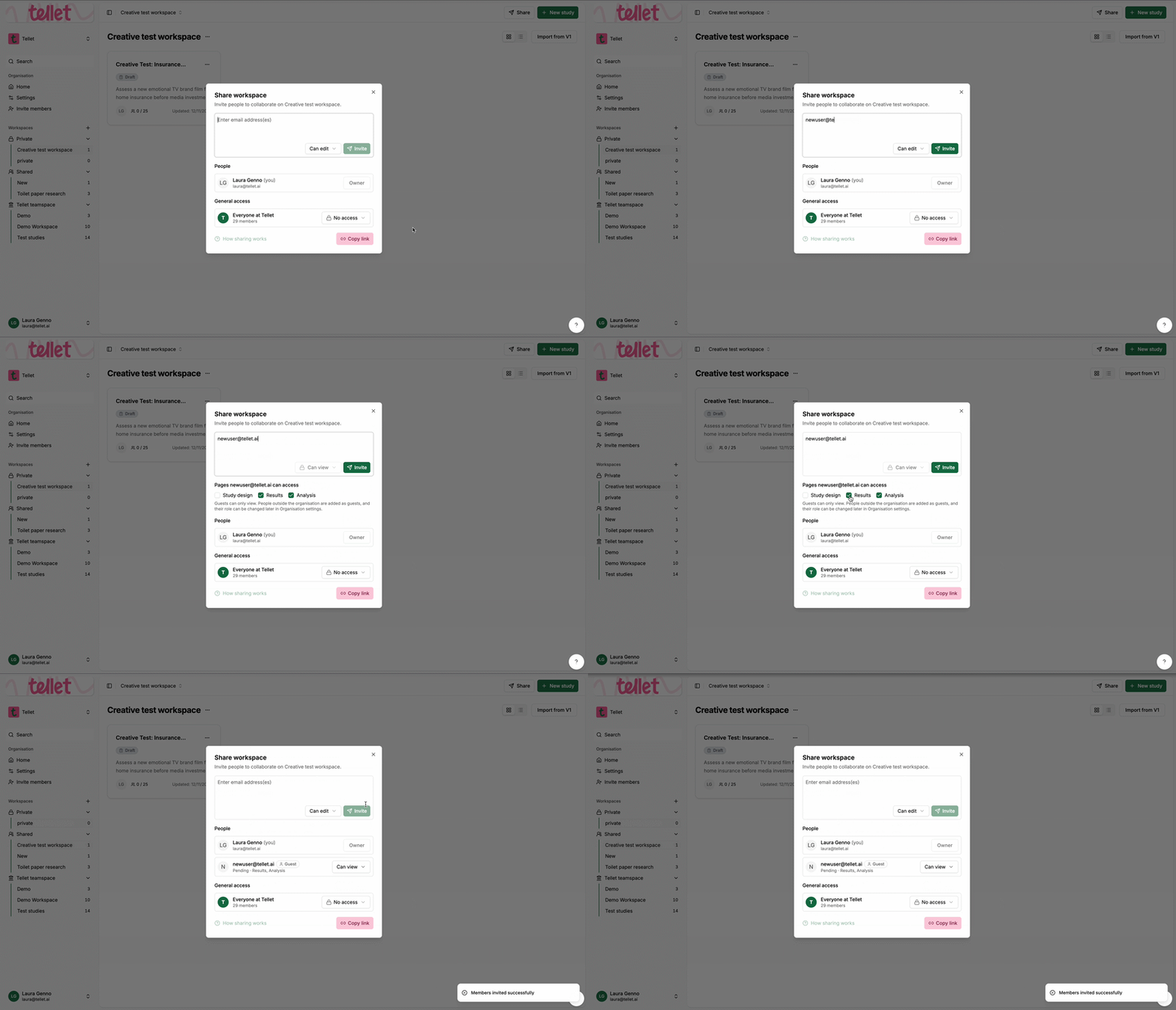
See only the pages you pick. Choose which study pages each guest can open: Study design, Results and Analysis. The Recruit page is always hidden for guests.
Pages a guest can't access are hidden from their study navigation. If they open one by direct link, they see a no access message.
Invite a guest
Open a workspace and click
Share.Enter the person's email address and pick the Guest role.
Under Pages guests can access, choose the pages. Results and Analysis are selected by default.
Send the invite.
Change a guest's access
Pages: open the guest's access dropdown in
Shareand tick or untick pages. Changes apply the next time they load a page, with no new invite needed. At least one page always stays selected.Role: when a guest becomes part of your team, change their role to Editor or Admin to give them full access from Member management
Also new: Can view and Can edit for workspaces
Every workspace now has two access levels, for named people and for Everyone at your organisation:
Can view: see studies and results.
Can edit: create and edit studies.
If someone has both a personal level and the organisation-wide level, the higher one applies. Editors in your organisation now also see all shared workspaces.